
How to Create a Group in Gmail Quickly
You’re probably here because you keep sending the same email to the same people, and you’re tired of typing every address over and over. That’s the exact point where Gmail groups start paying for themselves. A small setup now saves repeated clicks later, and it also cuts down on the easy mistakes, like leaving one teammate off a thread or exposing everyone’s addresses when you meant to send privately.
Many users find it confusing that there are two different ways to create a group in Gmail. One is a Contact Label, which works like a personal distribution list inside Google Contacts. The other is Google Groups, which creates a real group email address and adds collaboration controls. They solve different problems, and choosing the right one matters more than the setup itself.
Table of Contents
- Why Create Email Groups in Gmail
- The Quick Method Creating Contact Labels in Gmail
- For Teams and Collaboration Create a Google Group
- Contact Labels vs Google Groups Which Should You Use
- Advanced Tips for Managing Your Gmail Groups
- Streamline Your Communication and Reclaim Your Inbox
Why Create Email Groups in Gmail
If you send updates to a project team, client list, leadership circle, volunteer committee, or family members, manual addressing gets old fast. It also creates a hidden workflow problem. Every send becomes a tiny memory test: who needs to be included, who changed roles, and who should be in BCC instead of To.

Gmail gives you two practical fixes. Contact Labels are best when you want speed and simplicity for your own sending. Google Groups are better when the email address itself needs to represent a team, function, or shared workflow.
That distinction matters in real work. A founder sending a weekly note to advisors doesn’t need a full collaboration layer. A support team handling messages sent to a central address does.
Why groups save time and reduce mistakes
Groups are often started for convenience, but the bigger win is consistency. Once you create a group in Gmail, you stop rebuilding the same recipient list every time. The process becomes more reliable, especially when you’re moving quickly between meetings and trying to clear your inbox before the next call.
A good group setup helps with a few recurring problems:
- Repeated recipient entry: You type one name instead of a string of addresses.
- Missed recipients: You don’t forget someone because the list already exists.
- Cleaner communication: You can separate internal teams, client clusters, and personal circles.
- Easier maintenance: You update the list once, then reuse it.
Practical rule: If one person sends to the list, use a Contact Label. If multiple people need the same address and shared rules, use Google Groups.
The real choice to make first
Before touching settings, decide whether you need a personal shortcut or a shared team address. That’s the fork in the road.
If you skip that decision, you can end up building the wrong thing. I’ve seen people use labels for workflows that needed moderation and visibility controls, then wonder why the setup feels fragile. I’ve also seen people build full Google Groups for a tiny recurring list that only one person ever emails. Both work, but neither is efficient.
The Quick Method Creating Contact Labels in Gmail
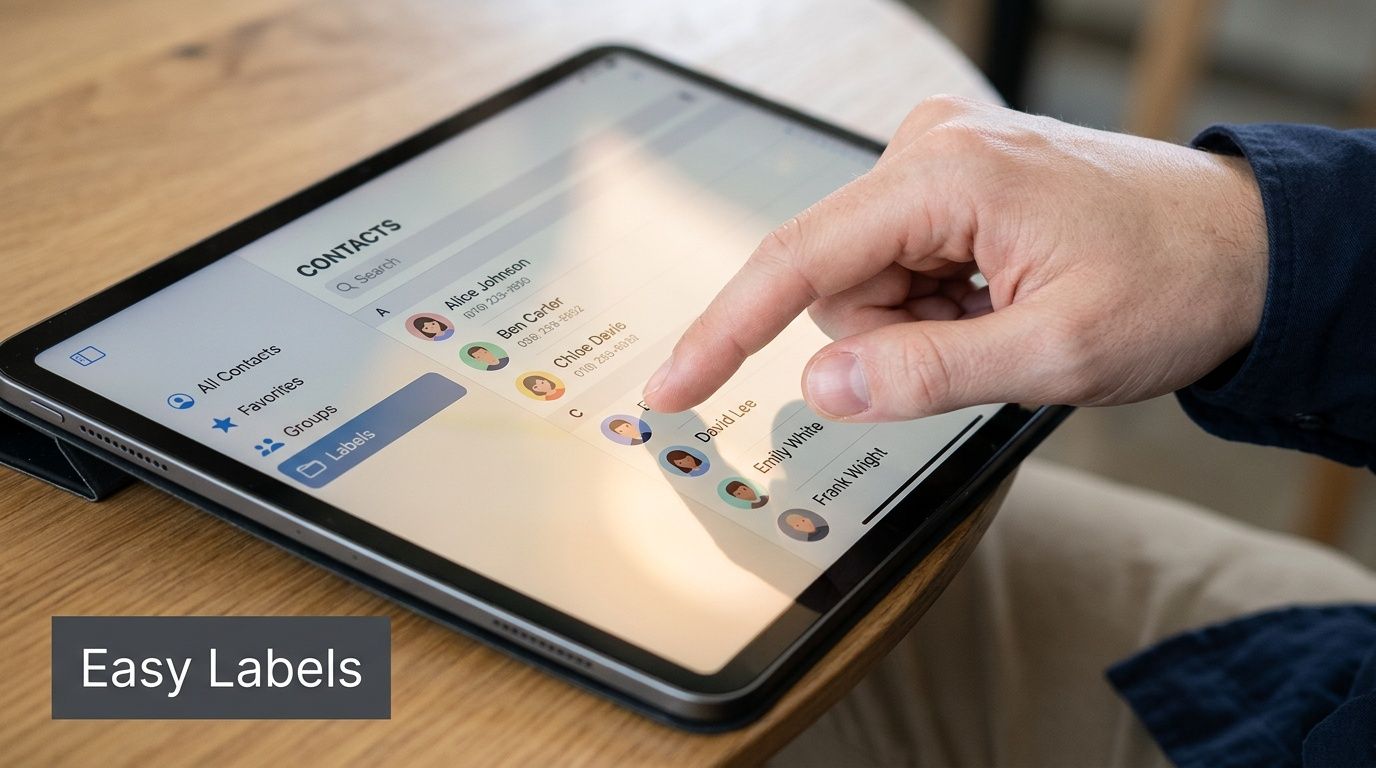
For most individuals, Contact Labels are the fastest way to create a group in Gmail. Google formalized this feature with the launch of Google Contacts in 2010, and by 2024, 65% of teams using Google Workspace created custom labels for departments. The same analysis notes that professionals using these groups save an average of 20 to 30% of their time on bulk emailing, according to NetHunt’s overview of Gmail groups.
When labels are the right tool
A label is best when you want to send the same message to a recurring set of people and you don’t need a standalone group email address. Think of labels as a personal shortcut, not a shared mailbox.
They work well for:
- Small internal lists: A manager emailing direct reports.
- Client segments: A consultant keeping separate labels for active accounts.
- Personal coordination: Family events, school contacts, or community groups.
- One-person ownership: Situations where only you maintain and use the list.
How to create and use a label
The desktop workflow is simple:
- Go to Google Contacts.
- Select existing contacts, or create new contacts first.
- Click Manage labels.
- Create a new label and give it a clear name.
- Apply the label and save.
A practical naming tip helps more than people expect. Use names that tell you exactly who’s inside, such as “Q3 Client Check-ins” or “Product Launch Core Team.” Short, obvious names reduce the odds that you’ll choose the wrong group while composing.
After that, open Gmail and start a new message. In the To, CC, or BCC field, type the label name. Gmail will suggest it, and selecting it fills in the contacts tied to that label.
Put a label in BCC when recipients shouldn’t see one another’s addresses. That’s especially useful for external updates, introductions at scale, or any message crossing company boundaries.
You can also manage labels from mobile on Android and iOS through Google Contacts. The screens vary a bit by device, but the workflow is the same: create the label, assign contacts, then use the label name while composing in Gmail.
A few operating habits make labels better over time:
- Audit before important sends: Open the label and confirm current members.
- Remove stale contacts: Don’t let old addresses sit in active groups.
- Use one purpose per label: Don’t mix “leadership updates” with “social planning.”
- Keep naming consistent: If you prefix team labels with “Team” or “Dept,” keep doing it.
Labels are light, quick, and low-friction. If that’s all you need, they’re hard to beat.
For Teams and Collaboration Create a Google Group
When a group needs its own identity, Google Groups is the better tool. Instead of acting like a personal tag, it creates a real group address such as support@yourcompany.com or ops@yourdomain.com. Google Groups launched in 2001 and now powers over 1.5 billion group memberships globally. In Google Workspace, 70% of enterprise groups use the “All email” subscription setting, and Google recommends nesting groups no more than 10 levels deep for performance, according to Google’s Groups help documentation.

What makes Google Groups different
A Google Group isn’t just a faster way to send one message. It’s a structure for team communication. That means you can control who joins, who posts, who sees members, and how messages are delivered.
Teams usually benefit most here:
- Shared addresses: One public-facing email can reach many internal people.
- Permission controls: You can limit posting and visibility.
- Delivery options: Members can choose each email, digest, abridged, or no email.
- Conversation continuity: The group can preserve history for team context.
That last point is underrated. When someone joins a team, a preserved conversation record can help them understand recurring issues, customer history, or internal decisions without asking a coworker to forward old threads.
How to set up a Google Group
The basic setup happens at groups.google.com. For Workspace admins, some group creation also happens in the Admin Console, but the logic is the same.
A clean setup usually follows this order:
-
Create the group Enter the group name, group email, and a short description.
-
Choose access settings Decide who can view conversations, post, and join.
-
Pick subscription behavior “Each email” is good for active roles. Digest or abridged is better for people who need awareness without constant interruptions.
-
Add members Add people directly, or invite them depending on the use case.
-
Test the address Send a message in, confirm delivery, and check whether the permissions work the way you intended.
The best Google Group setups are boring. The address is obvious, the permissions are tight, and everyone knows whether the group is for announcements, discussion, or external contact.
For business use, clarity matters more than cleverness. “support@” is better than a creative internal nickname. “finance-approvals@” is better than something vague like “ops2@“. People should know what the address is for before they send to it.
Google Groups is the stronger choice when the workflow needs structure. That includes support queues, department aliases, board communications, recruiting inboxes, and any scenario where the address belongs to a team rather than one person.
Contact Labels vs Google Groups Which Should You Use
Most confusion comes from treating these tools like substitutes. They overlap at the surface, but they’re built differently. A Gmail contact label is a tag, not a true mailing list, and while you can add many contacts, Gmail’s To field has a practical limit of around 10,000 recipients per email. It also lacks the moderation and bounce-handling features of a formal Google Group, as explained in Gaggle’s discussion of Gmail group architecture.
Contact Labels vs Google Groups at a Glance
| Feature | Contact Label (Simple Group) | Google Group (Collaborative Group) |
|---|---|---|
| What it is | A saved label in Google Contacts | A real group with its own email address |
| Best for | Personal lists and one-person sending | Team communication and shared addresses |
| Setup speed | Very fast | Slower, with more decisions |
| Shared ownership | No | Yes |
| Permissions | Minimal | Stronger access and posting controls |
| Bounce handling | No built-in handling | Better suited for delivery reporting |
| Moderation | No | Yes |
| Conversation history | Not group-based | Can be retained for the group |
| Good fit | Small recurring recipient lists | Support, operations, departments, aliases |
A simple decision rule
Use a Contact Label when the list lives in your workflow and only needs to make sending faster. Use Google Groups when the address itself needs to exist independently of you.
That leads to a few clear scenarios:
- Use Contact Labels: You send monthly updates to ten clients, a manager note to your leadership team, or an event reminder to a recurring list.
- Use Google Groups: Your company needs sales@, support@, or recruiting@, and multiple people need visibility.
- Use both: Many teams keep labels for personal speed and Google Groups for official inboxes.
If you’re also sorting out identity and routing in Gmail, this guide to adding an email alias to Gmail pairs well with group setup because aliases and groups often get mixed together.
One more trade-off matters: privacy. Labels feel private because they live in your contacts, but they don’t give you the same organizational controls as Google Groups. If a list contains sensitive client or internal recipients, default to the option with clearer permissions.
Advanced Tips for Managing Your Gmail Groups
Creating the group is the easy part. The friction shows up later, when someone leaves the team, a message bounces, or a list that started small turns into a mess.

Bulk setup and clean maintenance
For larger team rollouts, don’t add every member one by one if you’re working in a Workspace environment that supports bulk administration. Google Groups is better suited for structured member management, especially when you need to add many people and keep roles consistent.
A few habits keep groups usable:
- Standardize names early: Decide on one format for team, function, and region groups.
- Review membership regularly: Old members create delivery noise and privacy risk.
- Separate discussion from announcement lists: One group for active replies, another for one-way communication.
- Document ownership: Every group should have someone responsible for settings and cleanup.
For day-to-day inbox productivity after setup, tools that assist with drafting and triage can help teams move faster inside Gmail. If that’s relevant to your workflow, this article on an AI email assistant is useful background.
Fixing bounces and protecting privacy
Bounces are one of the most common group-email frustrations. Approximately 15% of group email queries in Gmail help forums involve undelivered messages, and the practical difference is important: Contact Labels offer no bounce handling, while Google Groups provide delivery reports that help diagnose failures, according to this analysis of group email bounce issues.
When messages fail, check the basics first:
-
Invalid or stale addresses Someone changed jobs, mistyped an address, or was added with outdated contact details.
-
Posting restrictions In Google Groups, the sender may not have permission to post.
-
Spam or filtering issues The message can be blocked or routed unexpectedly on the receiving side.
-
Wrong tool for the job A label-based send gives you less diagnostic feedback than a formal group.
Don’t troubleshoot group delivery from the compose window alone. Open the group or contact source and verify the underlying membership first.
Privacy needs the same level of attention. A group can be technically correct and still be operationally unsafe if membership visibility is too open or if users send external announcements in the To field instead of BCC. For client-facing communication, assume recipient visibility matters unless you’ve confirmed otherwise.
A practical safeguard is to treat every new group as if it might one day contain sensitive recipients. Set clear names, restrict membership management, and decide upfront whether the list is internal, external, or mixed.
Streamline Your Communication and Reclaim Your Inbox
If you want the shortest path to better email habits, the answer is simple. Build Contact Labels for fast personal sending. Build Google Groups when the address needs to function as a team asset.
That decision removes a lot of avoidable friction. You stop rebuilding recipient lists, cut down on missed contacts, and create a cleaner system for recurring communication. Small improvements here compound quickly because email is repetitive work. The less manual setup each send requires, the more attention you keep for the message itself.
There’s also a mental benefit people don’t talk about enough. When groups are named well and maintained properly, you don’t hesitate before sending. You know who’s included, which address to use, and whether the thread belongs to you or to the team. That confidence is part of inbox productivity too.
If your next step is broader email cleanup, this guide on how to organise your inbox is a smart follow-on.
Ellie helps you go beyond better group setup. It drafts replies directly inside Gmail and Outlook, learns your writing style from your sent mail, and can pull in the right company knowledge for sales, support, and operations teams. If you want to spend less time writing repetitive emails and more time approving strong drafts, try Ellie.