
Quick Fix: Emails Not Coming Through On iPhone
You open Mail on your iPhone, pull down to refresh, and nothing happens. Then you check the same account on your laptop and see messages sitting there waiting. That’s usually the point where people assume the account is broken, Apple Mail is unreliable, or their provider is down.
Most of the time, the problem is much smaller than that. Emails not coming through on iPhone usually come down to a short list of causes: the phone isn’t connected properly, Mail isn’t allowed to refresh when you expect it to, the account lost authentication, or iOS is limiting background activity. The trick is checking them in the right order so you don’t jump straight to deleting accounts or resetting the phone for no reason.
Table of Contents
- Start with the Quickest Fixes First
- Master Your iPhone Email Fetch Settings
- Troubleshoot Account and Server Connections
- Check Device-Wide Settings and Limitations
- App-Specific Fixes for Gmail and Outlook
- When All Else Fails and How to Prevent Future Issues
Start with the Quickest Fixes First
When email stops syncing, start with the checks that take seconds. A lot of mail problems aren’t mail problems at all. They’re connection hiccups, a stuck radio, or a device process that needs to restart cleanly.
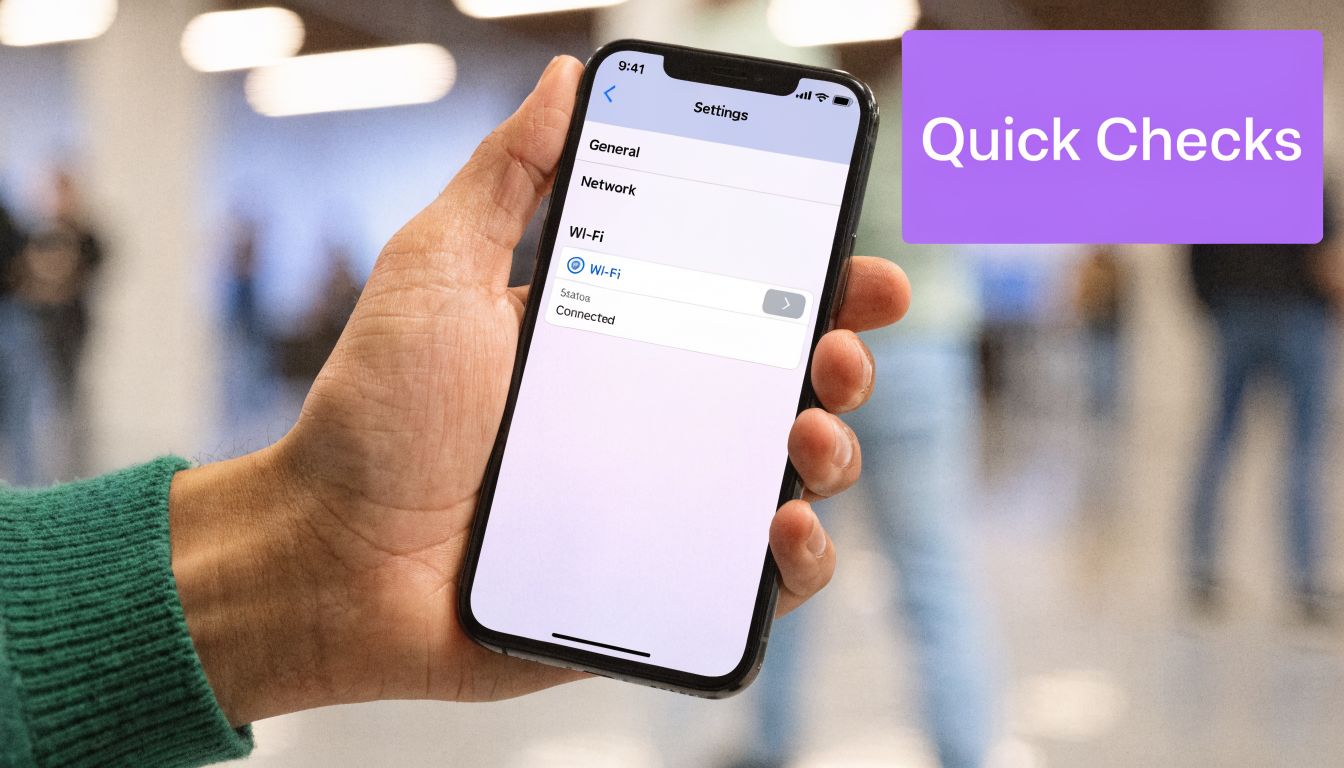
Check whether the iPhone is actually online
Open Safari and load any site you know is working. If pages won’t load, Mail won’t sync either.
Then check these basics:
- Wi-Fi is connected: Open Settings, tap Wi-Fi, and confirm you’re on a network with internet access, not just a remembered network.
- Cellular data is available: If Wi-Fi is flaky, turn Wi-Fi off briefly and test over cellular.
- Mail can use data: In Settings, open Cellular and make sure Mail is allowed to use mobile data.
- Airplane Mode is off: It sounds obvious, but it’s one of the fastest things to verify.
If you recently switched offices, airports, or public networks, the iPhone may look connected while traffic is being blocked by a login screen or unstable hotspot. That creates the classic symptom where old messages are visible, but new ones never arrive.
Practical rule: If Safari can’t reliably load pages, don’t troubleshoot Mail yet. Fix connectivity first.
Restart before you dig through menus
A restart clears stalled background processes, reconnects network services, and forces Mail to reopen its sessions to the server. That’s why this simple step works more often than people expect.
Use this sequence:
- Close Mail completely. Swipe it away from the app switcher.
- Restart the iPhone. Power off, wait a moment, then power it back on.
- Open Mail and pull to refresh. Watch whether new messages appear or whether you get a password or connection prompt.
If you just added a mailbox and it never started syncing properly, it’s also worth reviewing the original setup. A step-by-step guide to set up email on iPhone is useful when you suspect the account was added with the wrong options from the start.
If your inbox supports an automated workflow and you want to rule out whether the issue is with the phone versus the mailbox itself, Ellie’s help center is a practical place to compare app behavior with account behavior.
Master Your iPhone Email Fetch Settings
If the quick checks didn’t fix it, this is the first place I’d look. Fetch settings control when Mail checks for new messages, and the default behavior often confuses people because it sounds more immediate than it is.
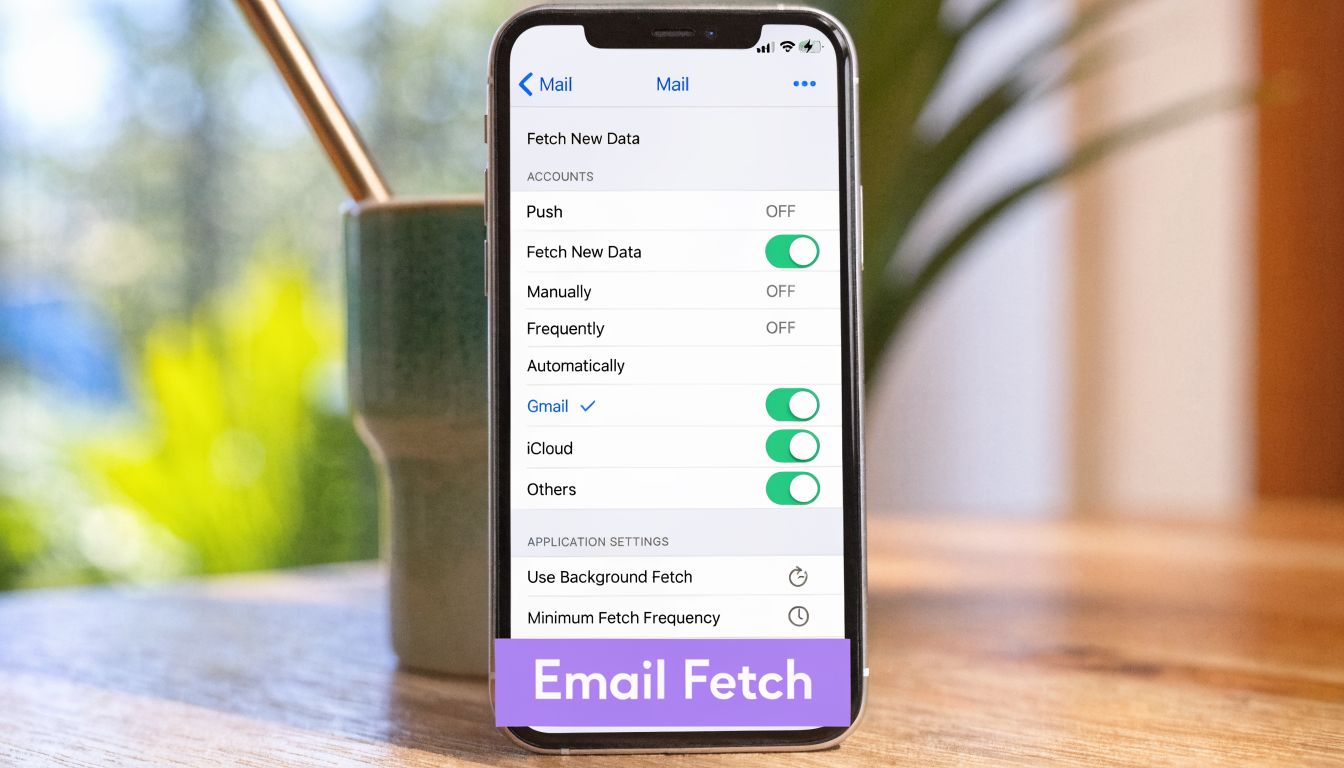
A Business Insider summary of Apple’s mail behavior notes that a 2022 Apple Community thread analysis shows ~35% of “emails not coming through” reports link to Fetch/Push toggles. The same source says that with iOS 11 and later, the default Fetch New Data setting is Automatically, which typically fetches only when the device is charging and on Wi-Fi. That’s a poor fit if you expect fast delivery while moving between meetings on cellular.
Understand Push, Fetch, and Manual
These settings sound technical, but the behavior is simple.
| Setting | What it does | Why it matters |
|---|---|---|
| Push | The server tells your iPhone when a new email arrives | Best when the account supports it and you want near-immediate delivery |
| Fetch | Your iPhone checks the server on a schedule | Good for battery, but scheduled delays can feel like missing mail |
| Manual | Mail checks only when you open the app or refresh it | Fine for low-priority accounts, bad for urgent inboxes |
For many people, the issue isn’t that email failed. It’s that the phone hasn’t checked yet.
Change the setting that controls delivery timing
Go to Settings > Mail > Accounts > Fetch New Data.
Then work through it in this order:
- Turn on Push if your account supports it. iCloud and Exchange commonly do. If Push is available, this is the cleanest fix for delayed visibility.
- For accounts using Fetch, choose a shorter interval. If the account is set to every 30 minutes, delays are expected.
- Avoid Manual for work inboxes. Manual makes sense only if you rarely need the account on your phone.
This matters more for non-Gmail accounts than many guides admit. If you use IMAP for work, the phone may be behaving exactly as configured, just not in the way you assumed.
A phone set to fetch on a long interval can make healthy mail delivery look broken.
Check notifications separately from syncing
Sometimes messages are arriving but you aren’t being alerted. That creates a different kind of confusion, especially if you depend on lock-screen banners.
Check Settings > Notifications > Mail and confirm:
- Allow Notifications is on
- Lock Screen, Notification Center, and Banners are enabled as needed
- Sounds are enabled if you rely on audible alerts
- Customize Notifications shows the right mailbox behavior
Also open the Mail app itself and look directly in the inbox. If messages appear there but you never got a banner, you don’t have a delivery problem. You have a notification problem.
One small setting can waste a lot of time
On busy teams, delayed visibility is more than an annoyance. Sales and customer success staff often judge email health by what appears on their phones first. If that phone is checking only occasionally, they can spend half the day chasing the wrong cause.
That’s why I treat fetch settings as an operational setting, not just a personal preference.
Troubleshoot Account and Server Connections
If the phone is online and Mail is set to check often enough, move to the account itself. At this point, the question changes from “Is the iPhone looking for mail?” to “Can it still log in and talk to the mail server?”
Start with the password, not the server menu
The most common account-level failure is simple. The saved password is wrong, expired, or no longer accepted after a provider-side security change.
Check the account on the provider’s webmail first. If you can sign in there, the mailbox itself is probably fine. If webmail rejects the password too, the iPhone is not the problem.
Then return to the phone:
- Open Settings > Mail > Accounts.
- Tap the affected account.
- Re-enter the password if iOS shows an authentication warning.
- Test sending an email to yourself.
That last step matters. Receiving and sending use different server paths. You want to know whether only incoming mail is broken or whether the whole account connection is failing.
Verify the incoming and outgoing server settings
If the password is correct but syncing still fails, inspect the account details. A typo in the incoming or outgoing server name, the wrong account type, or an old saved setting can leave Mail stuck.
For custom accounts, compare your values against Apple’s Mail Settings Lookup tool. That helps confirm whether the iPhone has the right server address and account behavior for your provider.
Use this logic:
- If webmail works but iPhone Mail doesn’t, the handset configuration deserves attention.
- If one mailbox fails but others work, the problem is probably account-specific.
- If sending works but receiving doesn’t, focus on incoming settings first.
IMAP is usually the better choice than POP on an iPhone because IMAP keeps mail state aligned across devices. POP is more likely to create confusion when messages appear on one device and not another.
If the key is wrong, the door won’t open. If the address is wrong, you’re knocking at the wrong building.
Know when the problem isn’t delivery at all
Sometimes people say emails aren’t coming through on iPhone when the actual problem is that the sender’s messages landed in junk or were filtered upstream before the iPhone ever had a chance to display them. If you suspect that, this guide on how to check if emails are going to spam can help separate mailbox filtering from device sync issues.
If password prompts keep reappearing after you re-enter credentials, removing and re-adding the account can clear stale authentication data. I treat that as a later step, though. It’s useful, but only after you’ve confirmed the account itself works in a browser.
Check Device-Wide Settings and Limitations
It is iPhone-level controls that override your mail preferences. You can have the right account, the right password, and sensible fetch settings, and still get delayed or missing mail because iOS is conserving storage, background activity, or network usage.
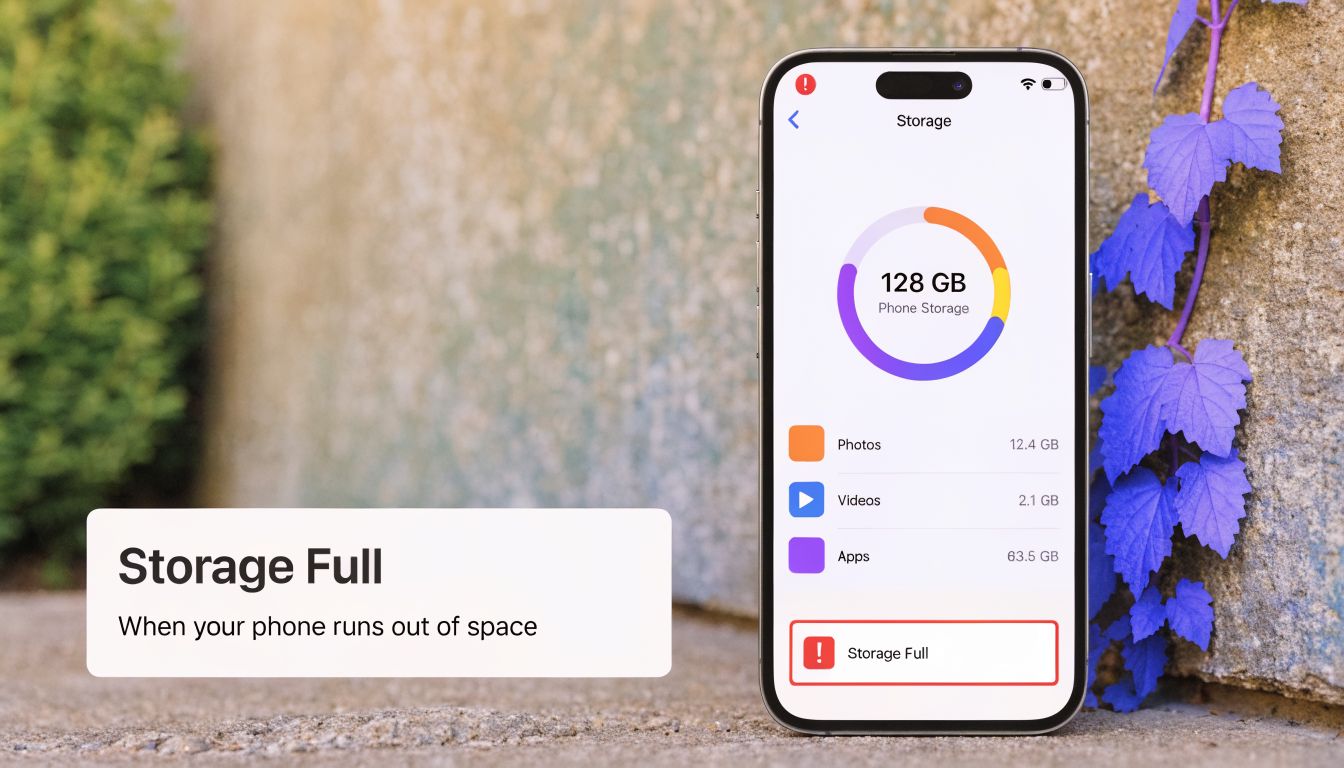
A YouTube diagnostics guide reports that iPhone storage constraints critically halt email reception when free space drops below 5-10GB, and that this shows up in 25% of troubleshooting cases in those guides. The reason is straightforward. Mail needs room to download message bodies, cache content, and save attachments. Without enough free space, new mail may stop appearing reliably.
Check storage before anything drastic
Go to Settings > General > iPhone Storage and look at available space.
If free space is low, start with the biggest offenders:
- Photos and videos: Usually the fastest place to recover space.
- Large apps you rarely open: Games and media apps often consume more than expected.
- Downloaded media: Podcasts, offline music, and video downloads are common culprits.
- Old message attachments: Messaging apps can take up a lot of storage.
You don’t need to overthink this. If storage is very tight, free up space first and test Mail again before changing deeper settings.
Background App Refresh matters more than people realize
Mail can’t feel instant if iOS won’t let it update in the background. Open Settings > General > Background App Refresh and make sure it’s enabled.
Why this works is simple. When Background App Refresh is off, Mail updates mainly when you open it directly. That creates the familiar cycle where no messages seem to arrive, then a burst appears the moment you launch the app.
If you use third-party mail apps, this setting matters there too. iOS can be more aggressive about limiting background activity when the device is under pressure.
Low Power Mode and Low Data Mode both slow things down
These settings are useful. They also interfere with timely mail behavior.
Check for both:
| Setting | Where to check | Effect on mail |
|---|---|---|
| Low Power Mode | Settings > Battery | Reduces background activity |
| Low Data Mode | Settings > Cellular or Wi-Fi | Limits background network usage |
If you’re troubleshooting, turn them off temporarily and test again. If mail starts behaving normally, you’ve found the trade-off. The phone was preserving battery or data by delaying background work.
Don’t confuse a conservation setting with a malfunction. iOS is often doing exactly what you asked it to do.
Keep iOS current
Mail bugs do happen. If the problem started right after a rough update cycle or only on one device, check whether an iOS update is available. I wouldn’t make that the first move, but once the basics are ruled out, it’s a sensible one.
App-Specific Fixes for Gmail and Outlook
Not everyone uses Apple Mail. If you work from the Gmail or Outlook app, the troubleshooting changes because those apps have their own notifications, their own inbox views, and their own sync behavior inside iOS.
Gmail app versus Apple Mail
The Gmail app often works well, but it can still look broken when notifications are disabled or background activity is restricted.
Check these points inside Gmail and iOS:
- Gmail notifications are enabled inside the Gmail app. App-level notification preferences can differ from iPhone-wide settings.
- Background App Refresh is enabled for Gmail. If iOS is limiting it, alerts may lag.
- The app is updated. Old builds sometimes behave badly after iOS changes.
- Remove and re-add the account inside Gmail if sync looks stuck. That clears stale session issues without changing the whole phone.
One practical test is to send yourself an email, then compare web Gmail with the Gmail app. If the browser shows it and the app does not, the issue is app-side, not delivery-side.
Outlook has one extra trap
Outlook adds a layer that confuses plenty of people: Focused Inbox. Important mail can end up under Other, and users read that as “the message never arrived.”
So before you assume Outlook failed:
- Open Outlook.
- Check both Focused and Other tabs.
- Search for the sender directly.
- Review notifications and account sync settings.
For teams that live in Microsoft 365, tools built around Outlook can help reduce inbox load once delivery is stable. If that’s your workflow, Ellie’s Outlook assistant shows one way to handle reply drafting without leaving the Microsoft environment.
When reinstalling helps
Reinstalling Gmail or Outlook is worth trying only after you’ve checked the app’s own settings. It helps when local app data is corrupted or the account session won’t refresh cleanly.
A good rule is:
- Use settings fixes first
- Use account re-add second
- Use reinstall last
That order saves time and avoids turning a small sync issue into a larger cleanup project.
When All Else Fails and How to Prevent Future Issues
If none of the device and app fixes worked, stop changing settings for a moment and check whether the provider itself is having trouble. Gmail, Microsoft 365, and other mail services sometimes have temporary outages or degraded syncing. Their status pages are the fastest way to avoid wasting another hour on your phone when the issue is upstream.
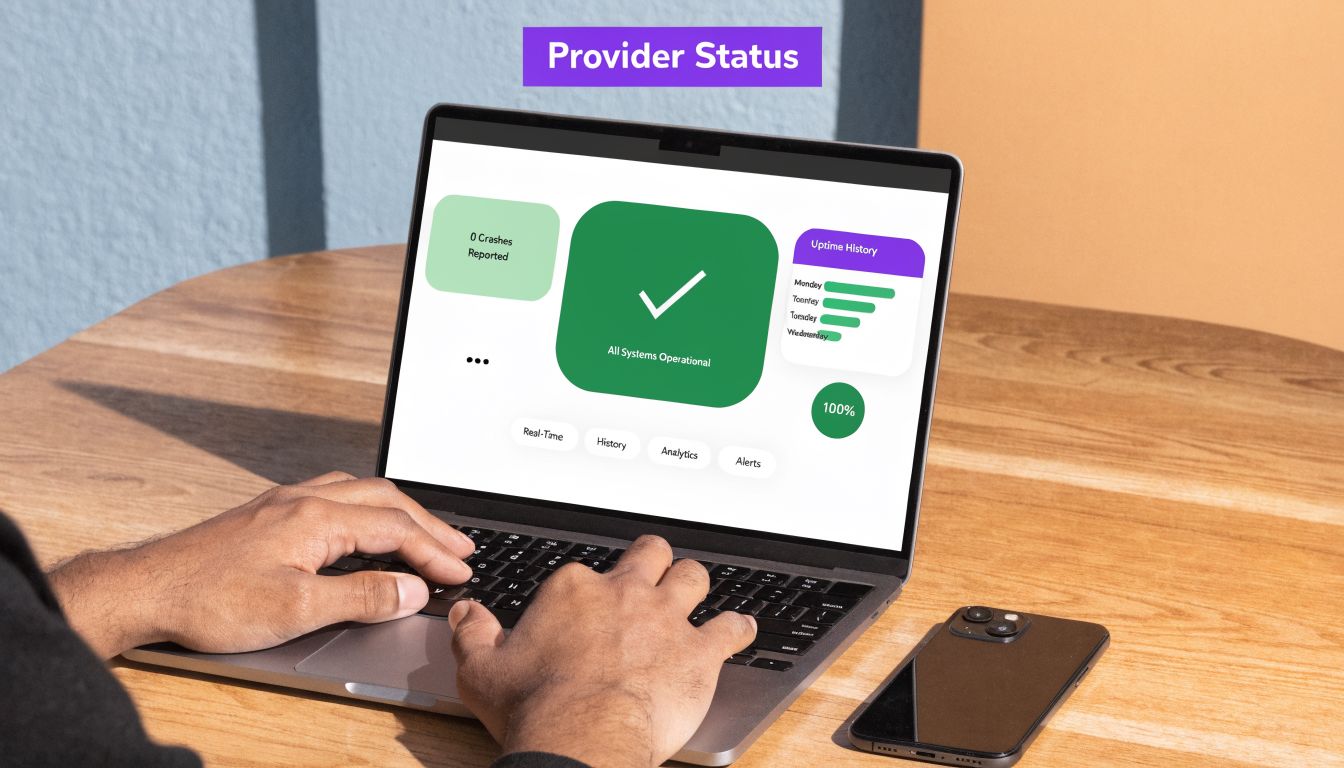
If the status page is clear, contact the provider or your company’s IT team with specifics. Don’t just say “Mail is broken.” Give them the account type, whether webmail works, whether sending works, whether one device is affected or several, and what you already tested. That shortens the path to a real fix.
What to do when support gets involved
Bring a concise checklist:
- Which app is affected: Apple Mail, Gmail, or Outlook
- Whether webmail works: This separates mailbox issues from device issues
- Whether the problem is send, receive, or both
- Whether the issue happens on Wi-Fi, cellular, or both
- Whether another device shows the same delay
Support can do more with that than with a screenshot of an empty inbox.
Prevention is mostly about avoiding silent delays
A YouTube guide focused on iOS mail timing points out that many troubleshooting guides miss how important sync frequency is for non-Gmail IMAP accounts. For sales and customer success teams, having Mail set to fetch every 30 minutes can create meaningful response delays, costing hours of response time daily without the team realizing the root cause is an iPhone setting rather than the email system itself.
That’s the part many people miss. Delayed mail isn’t just technical friction. It changes how fast your team follows up, how quickly clients hear back, and whether urgent conversations get handled while they still matter.
A simple maintenance routine works
I’d keep it boring and repeatable:
- Review fetch behavior after major iOS updates
- Keep enough free storage on the phone
- Leave background refresh available for your main mail app
- Use Low Power Mode and Low Data Mode knowingly, not permanently
- Check provider status before deleting accounts or reinstalling apps
If fast responses matter in your job, it’s also worth tightening the rest of the workflow around the inbox. This overview of what email automation is is useful if you’re trying to reduce the time between receiving a message and getting a polished reply out the door.
If your inbox works but replying still eats too much time, Ellie helps by drafting replies directly inside Gmail and Outlook in your tone. It’s a practical next step for teams that want faster responses without turning email into another manual task.
Refined using the Outrank tool