
Mac OS X Password Protected ZIP: Create Secure Files
You’ve got a contract, pricing sheet, or board document ready to send from your Mac. Email is the fastest path, but the plain attachment route isn’t acceptable. The file needs a password, and the recipient might be on Windows, not macOS.
That’s where most advice falls apart. It gives you a Terminal command and stops there. In real work, that isn’t enough. You need to know which option is fast, which one is secure, and which one won’t create friction for the person opening the file in Gmail or Outlook.
Table of Contents
- Sending Secure Files from Your Mac The Right Way
- The Fast Method Using Terminal With a Big Catch
- The Secure Native Method Creating an Encrypted Disk Image
- The Universal Method Using Third-Party Apps
- Choosing Your Method Security and Compatibility Compared
- Your Smart Workflow for Secure Email Attachments
Sending Secure Files from Your Mac The Right Way
If you right-click a file in Finder and choose Compress, macOS will make a ZIP file. It won’t add a password. That’s the first problem busy professionals run into when they need to send something sensitive by email.
The second problem is worse. Many tutorials recommend zip -er or zip -P without explaining that they rely on outdated PKZIP 2.0 style encryption and that zip -P can expose the password in command history, which creates an avoidable risk for professional email workflows, as noted in this macOS ZIP password protection write-up.
What actually matters in email workflows
When executives and client-facing teams ask about a mac os x password protected zip, they’re usually balancing three things:
- Speed: You need to send the file now.
- Security: The file contains information that shouldn’t travel unprotected.
- Compatibility: The recipient has to open it without a support call.
If you automate a large share of your inbox, this decision point shows up often. Teams already using tools that improve reply handling, triage, and follow-up can apply the same thinking to attachments. If you want a better system around repetitive client communication, this overview of email automation for busy teams is useful context.
The right tool depends on the recipient
There isn’t one perfect method. There are three practical choices:
- Terminal ZIP for speed when the file isn’t highly sensitive.
- Encrypted DMG when security matters most and the recipient is also on a Mac.
- Third-party archive tools when you need a strong, professional option for mixed Mac and Windows environments.
Practical rule: Choose the method based on the recipient’s device first, then the sensitivity of the file.
If your work also includes gated media or controlled client delivery beyond standard attachments, a workflow for secure video content access can be a useful parallel. The principle is the same. Access control only works when the recipient can use it without friction.
The Fast Method Using Terminal With a Big Catch
The built-in Terminal route is the fastest way to make a password-protected ZIP on macOS. No installs. No subscriptions. No waiting.
The exact command
Open Terminal, move to the folder that contains your file, then run:
zip -er archive.zip filename
For a folder, use the folder name instead of the file name. The -r behavior is included in the common recursive pattern shown as zip -er encrypted.zip foldername/, and the password prompt appears in Terminal without showing the characters you type, as described in this Terminal ZIP walkthrough for macOS.
A simple example looks like this:
- Open Terminal from Spotlight.
- Type
cd ~/Desktopif the file is on your Desktop. - Run
zip -er contract.zip contract.pdf - Enter the password.
- Re-enter the password to confirm.
That creates a file named contract.zip that you can attach in Gmail or Outlook.
Why this method is attractive
For quick tasks, it works well enough:
- Built in: Every Mac already has it.
- Fast to execute: Once you know the command, it takes seconds.
- Good for light protection: It stops casual snooping if someone stumbles across the file.
That’s why it remains popular. It’s frictionless for the sender.
The catch that most guides skip
This method uses ZipCrypto, and that’s the problem. The same walkthrough notes that an 8-character alphanumeric password can be cracked in under a day on modern hardware, and filenames inside the ZIP remain visible even when the contents are locked in the archive through the standard ZIP structure in that format.
Don’t treat a Terminal ZIP as a vault. Treat it as a privacy screen.
That filename exposure matters more than people think. If your archive contains files named Acquisition-Terms.pdf, Employee-Severance.xlsx, or Board-Draft-Final.pages, you may leak enough context before the recipient even enters the password.
When Terminal is acceptable
Use it when all of these are true:
- The file is low sensitivity: internal notes, draft slide decks, or routine documents.
- The main goal is convenience: you need a password layer, not strong confidentiality.
- You’ve confirmed the recipient can open ZIPs with a password: ideally before sending.
Skip it for contracts, financials, HR records, customer data, legal material, or anything you’d regret seeing forwarded.
The Secure Native Method Creating an Encrypted Disk Image
If the file is highly sensitive and the recipient is also on a Mac, use Disk Utility and create an encrypted DMG. This is the strongest native option on macOS for everyday business use.
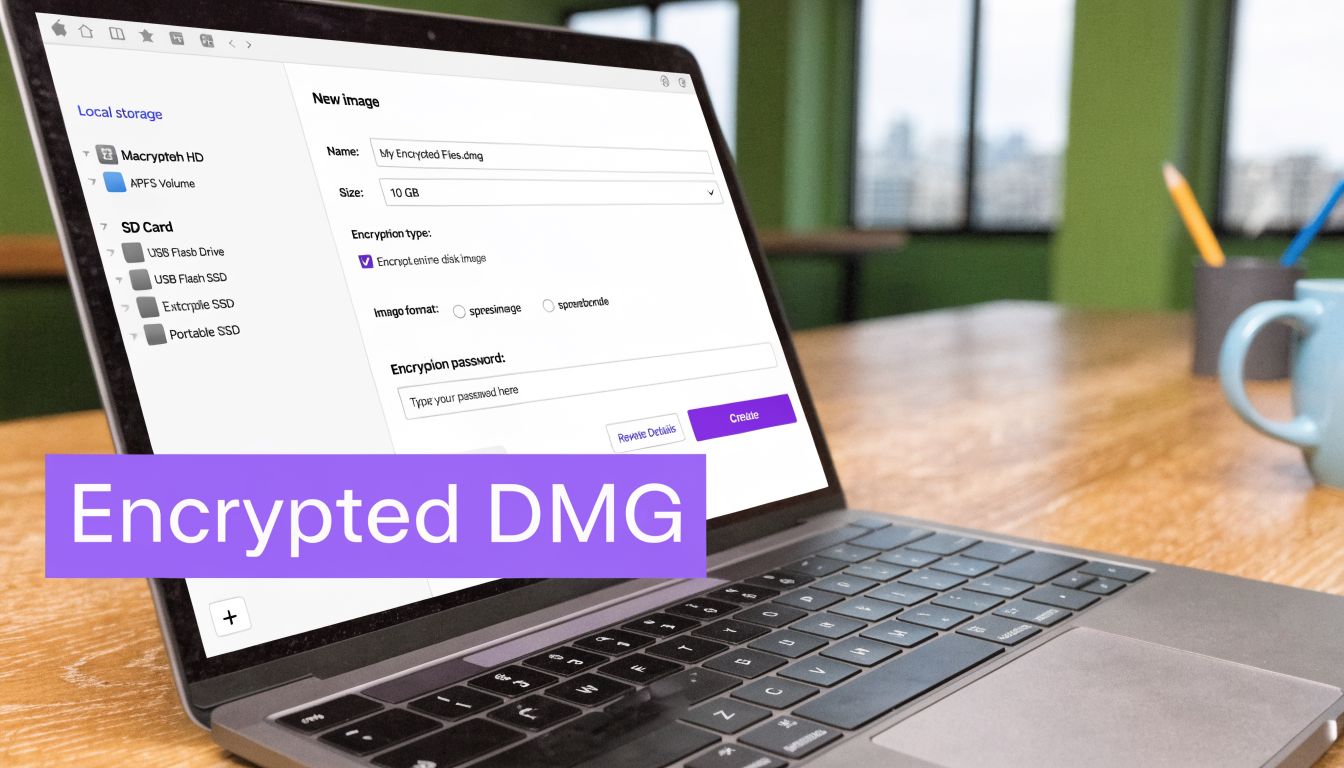
A DMG behaves like a locked container. The recipient opens it, enters the password, and mounts it like a disk. For Mac-to-Mac exchange, it’s cleaner and more defensible than the old ZIP route.
How to create an encrypted DMG
Open Disk Utility, then follow this path:
- Choose File.
- Select New Image.
- Pick Blank Disk Image.
- Give it a name and location.
- Set a size large enough for your files.
- Under encryption, choose AES-256.
- Enter a strong password.
- Save the image, then open it and drag your files inside.
After you eject the mounted image, the DMG is ready to send.
Why this is the better native security choice
The major advantage is the encryption standard. The brief for this article specifically points to Disk Utility’s AES-128/256 encrypted DMG option as the stronger native alternative to ZIP, and that’s the reason security-conscious Mac users prefer it for confidential storage and sharing.
You also avoid the ZIP-specific issue of exposing archive filenames in the same way.
If the file would trigger a legal, compliance, or reputation problem when exposed, use a DMG instead of a native ZIP.
The real limitation
DMG is excellent inside the Apple ecosystem. It’s poor for broad cross-platform sharing.
Windows recipients usually won’t have a smooth path to opening a DMG. That makes it a bad choice for outside counsel on a Windows laptop, a procurement team using Outlook on PC, or a client assistant working from a locked-down enterprise machine.
For professionals who need stronger grounding in encryption choices before audit reviews or policy updates, this reading list can help strengthen your encryption knowledge for audits. It’s useful when you need to explain why one format was chosen over another.
The Universal Method Using Third-Party Apps
In mixed-device business environments, third-party tools are the professional answer. They solve the two biggest weaknesses of the native Mac options. Native ZIP is convenient but weak. DMG is strong but Mac-centric.
Apps like Keka, BetterZip, and Archiver sit in the practical middle. They let you create encrypted archives in formats that travel better between macOS and Windows.
Why these tools win in real client work
The key issue isn’t just making a password-protected file. It’s making one the recipient can open without confusion. Standard Mac ZIPs made with zip -er often fail in Windows File Explorer, and compatibility complaints increased in macOS Sonoma discussions, which is why tools that create AES-ZIP or 7z archives are the safer cross-OS choice according to this Apple Discussions compatibility thread.
That’s the difference between a technical solution and a usable one.
When a finance lead sends a proposal to a customer, or an account manager emails renewal paperwork, the archive format shouldn’t become a support ticket. Good third-party tools reduce that risk.
What to look for in an app
Don’t overcomplicate the selection. Focus on these points:
- Modern encryption: Look for AES-256 support.
- Format choice: ZIP with AES or 7z is usually the practical target.
- Recipient simplicity: The other side should be able to open it with common tools such as 7-Zip.
- Repeatability: Presets matter if your team sends protected attachments often.
BetterZip gets mentioned often for business use because it offers presets and better control over archive behavior. Keka is popular because it’s straightforward. Archiver appeals to people who want a polished interface and fewer knobs.
A clean workflow that works
For client-facing teams, the pattern is simple:
- create the archive in an AES-capable app
- attach it in Gmail or Outlook
- send the password separately through another channel
That second step matters. Don’t include the password in the same email as the file. Send it via chat, phone, or a separate message with a time gap.
A file is only as secure as the way you deliver the password.
Choosing Your Method Security and Compatibility Compared
Executives don’t need a long technical lecture. They need a fast decision. The best method depends on the sensitivity of the file and the recipient’s device.
Here’s the practical comparison.
Mac File Protection Method Comparison
| Method | Security Level | Windows Compatibility | Best For |
|---|---|---|---|
Terminal zip -er | Low for sensitive business use | Unreliable for some recipients | Quick protection for non-sensitive files |
| Encrypted DMG in Disk Utility | High within Mac workflows | Poor | Mac-to-Mac confidential sharing and secure archives |
| Third-party app with AES-ZIP or 7z | Strong for professional sharing | Good | Sensitive files sent across Mac and Windows |
The biggest risk in the default ZIP route
The standard macOS zip -e command uses ZipCrypto, a design from the 1990s. An 8-character alphanumeric password can be brute-forced in under a day on modern hardware, and Apple’s own documentation warns about its insecurity, which is why 99% of security experts in the verified material advise against it for sensitive data in favor of stronger formats. That warning is discussed in this Apple Community security discussion on zip -e.
That’s the number that should shape your decision.
A busy team might see “password protected” and assume the file is safe. It isn’t automatically safe. The label sounds reassuring, but the underlying method matters more than the presence of a password box.
A simple decision test
Use this quick filter before attaching anything:
-
Would exposure create legal or reputational damage?
Don’t use native ZIP. -
Is the recipient definitely on a Mac?
DMG is a strong option. -
Are you emailing someone outside your company?
Default to a third-party app with modern encryption and better compatibility.
If your organization is tightening attachment policies, password-sharing rules, or email handling standards, it’s worth reviewing broader email security guidance for teams. File protection decisions are part of the same operational risk picture.
Decision shortcut: Native ZIP is for convenience. DMG is for Mac security. Third-party AES archives are for professional email.
Your Smart Workflow for Secure Email Attachments
The cleanest workflow is the one your team will follow under deadline pressure. It shouldn’t require a security specialist. It should require one clear decision.
The practical decision tree
If the attachment is routine and the password is there mainly to discourage casual access, the Terminal method is acceptable. It’s fast, built in, and fine for low-stakes use.
If the file is highly confidential and staying inside a Mac-only workflow, create an encrypted DMG. That’s the best native choice when security matters more than compatibility.
For the most common professional scenario, sending a sensitive file to someone whose device you don’t control, use a third-party app that creates an AES-protected ZIP or 7z archive. That’s the least risky default for external email.
Keep the delivery process disciplined
The archive format is only half the job. The other half is how you send it.
- Separate the password: Deliver it through a different channel.
- Name files carefully: Don’t leak confidential context in visible filenames.
- Test before sending: If the recipient is important, open the archive on another machine first.
- Reduce inbox friction: Standardize this process so your team doesn’t improvise every time.
If you’re tightening workflows around secure outbound communication, this guide on secure business email with GoSafe insights is a useful companion. The archive itself matters, but so do the habits around sharing, verification, and follow-up.
There’s also a productivity angle. Teams that keep inboxes organized make better attachment decisions because they aren’t rushing. A cleaner structure for organising your inbox reduces the last-minute scramble that leads to weak file-sharing choices.
Use the simplest rule possible. Low sensitivity equals fast method. High sensitivity on Mac equals DMG. Sensitive cross-platform email equals third-party AES archive. That framework holds up in day-to-day client work.
Ellie helps you handle the rest of the email workload around secure attachments. If you want faster replies in Gmail and Outlook without losing your tone, Ellie drafts responses inside your existing inbox so you can review, tweak, and send with less effort.