
How to Add Email Alias to Gmail: All Methods
Your inbox usually gets messy for the same reason your work does. One address ends up doing too many jobs.
You sign up for software trials with it. Clients email it. A team forwards support questions into it. A side project lives there too. Then you try to sort all of that inside Gmail and realize people use the word “alias” to mean three different things.
That confusion is why so many people search for how to add email alias to Gmail and still leave with the wrong setup. Some need a quick personal sorting trick. Some need a real team alias in Google Workspace. Others need Gmail to send from an address hosted somewhere else.
Table of Contents
- What Is a Gmail Alias and Why Use One
- Create Instant Aliases in Any Personal Gmail Account
- How to Add Team Aliases in Google Workspace
- Use Gmail to Send Mail from Other Accounts SMTP
- Pro Tips for Alias Management and Productivity
- Troubleshooting Common Gmail Alias Issues
What Is a Gmail Alias and Why Use One
Individuals generally don’t need more inboxes. They require better identities inside one inbox.

A Gmail alias is an alternate address or address variation that still routes mail into the same Gmail account. The practical value is simple. You can separate context without constantly switching accounts.
There are three different methods people lump together under “alias,” and they solve different problems:
| Method | Best for | What it does | Main limitation |
|---|---|---|---|
| Plus or dot aliasing | Personal Gmail organization | Creates address variations like name+news@gmail.com | Usually good for receiving and filtering, not a separate sending identity |
| Google Workspace alias | Teams and role-based mail | Adds addresses like sales@company.com to a user | Requires admin setup and correct routing |
| Send mail as | External accounts in Gmail | Lets Gmail send from another address using SMTP | Depends on correct verification and mail server settings |
That distinction matters. If you run a business, the personal Gmail trick won’t replace a proper role address. If you’re just trying to track newsletters or signups, a full Workspace setup is overkill.
For a broader privacy and security perspective, Typewire has a useful guide to email aliases that helps frame when an alias is mainly for organization versus when it’s part of a larger identity strategy.
The common point of failure
Most tutorials stop at the easy part. They show one inbox trick and ignore team use.
That gap causes real problems. Team workflows often break when aliases are set up halfway, and a walkthrough cited in this video discussion of Workspace alias setup issues notes 25% higher bounce rates for misconfigured custom domains and says 40% of small business owners struggle with inbox overload.
Practical rule: Pick the alias type based on what you need to send, not just what you need to receive.
If you’re sorting your own incoming mail, use Gmail’s built-in address variations. If you’re representing a business role like support@ or sales@, use Workspace aliases. If you already own an address somewhere else and want Gmail as the control panel, use SMTP with “Send mail as.”
Create Instant Aliases in Any Personal Gmail Account
If you use a regular @gmail.com address, the fastest way to add email alias to Gmail is not a settings menu. It’s a naming trick Gmail already understands.
Gmail accepts messages sent to variations of your address using plus signs and dots. So if your address is janedoe@gmail.com, mail sent to janedoe+shopping@gmail.com still lands in the same inbox. Dots also work as variations in the local part, so jane.doe@gmail.com routes to the same place.
How personal Gmail aliases work
The plus version is the more useful one because it gives you labels you can read at a glance.
Use patterns like these:
- Newsletters:
yourname+newsletter@gmail.com - Shopping:
yourname+orders@gmail.com - Freelance work:
yourname+client@gmail.com - Testing forms:
yourname+test@gmail.com
The dot version is a fallback when a website rejects plus signs. Some forms do that, so it helps to keep both options in your pocket.
A practical resource from Zapier explains the mechanics and notes that filters built around +aliases can reduce unwanted signup spam and improve inbox organization by over 60% in user surveys from productivity platforms, as covered in Zapier’s Gmail alias guide.
Make the alias useful with filters
An alias without a filter is just trivia. The main benefit starts when Gmail handles the sorting for you.
Do this:
- Open Gmail Settings.
- Go to Filters and Blocked Addresses.
- Click Create a new filter.
- In the To field, enter the alias, such as
yourname+shopping@gmail.com. - Click Create filter.
- Choose an action:
- Apply the label for category tracking
- Skip the Inbox for low-priority mail
- Star it if it’s important
- Never send it to Spam for trusted automated messages
Use aliases to define intent.
+shoppingtells you where the address was used. A label turns that into a working system.
What works and what doesn’t
Personal Gmail aliases are excellent for inbound organization. They are weak as identity tools.
Here’s the trade-off:
- Works well: tracking signups, filtering promotions, routing low-priority mail
- Works poorly: pretending to be a separate sender identity
- Usually fine: one-person workflows
- Less useful: shared team communication
When you reply from a message sent to a +alias, Gmail still presents your main address as the sender. That’s why this method is great for sorting but not enough for client-facing role addresses.
If a form rejects the plus sign, switch to a dotted variation or reserve a dedicated address for that use. Keep your naming consistent so filters stay predictable. Once you mix +shop, +store, +orders, and +buy, your system starts drifting.
How to Add Team Aliases in Google Workspace
For teams, a real alias means an address like sales@company.com or support@company.com tied to a user’s existing mailbox. That’s different from the personal Gmail trick above.

This is the setup that matters for founders, customer success leads, and operations teams. It’s also where most alias tutorials fall apart, because there are two sides to the job. The admin has to create the alias, and the user still has to configure Gmail to send from it.
Google documents that admins can create up to 30 email aliases per user at no additional cost, and the feature is used by over 9 million paying businesses, including 70% of Fortune 500 companies, in Google Workspace’s alias documentation.
What the admin needs to do
Inside the Google Workspace Admin console, go to the user who should own the alias and add an alternate email address.
A typical setup looks like this:
- Primary mailbox: alex@company.com
- Added alias: sales@company.com
- Optional extras: renewals@company.com, partnerships@company.com
That gives one person or role holder multiple front-door addresses without creating new inboxes.
Admin setup is the backbone. If this part isn’t done cleanly, the user will see the address inconsistently or won’t be able to send from it at all. That’s where teams get the classic permission and verification loops.
What the user needs to do in Gmail
After the admin creates the alias, the user logs into Gmail and finishes the visible sending setup.
Use this sequence:
- Open Settings
- Go to Accounts and Import
- Find Send mail as
- Click Add another email address
- Enter the new alias
- Confirm it should be treated as an alias
- Complete the verification step if prompted
At that point, Gmail can present the alias as a selectable From address.
Team rule: Admin creation gives the address permission. User setup makes it usable in day-to-day email.
Where teams usually get stuck
The failure point is rarely the alias itself. It’s the mail path around it.
Common trouble spots include:
- Missing send-as setup: The alias receives mail, but the user can’t send from it.
- Bad domain routing: Gmail shows the alias, but outgoing mail fails or looks suspicious.
- Role confusion: Two people both think they own
support@company.com. - Compliance drift: A team uses role addresses without documenting who is allowed to reply.
For sales and customer success teams, role-based aliases work best when ownership is explicit. One person can own renewals@company.com, another can own support@company.com, and managers can standardize signatures and reply habits.
This setup keeps threads inside one mailbox while still preserving the role the customer expects to see.
Use Gmail to Send Mail from Other Accounts SMTP
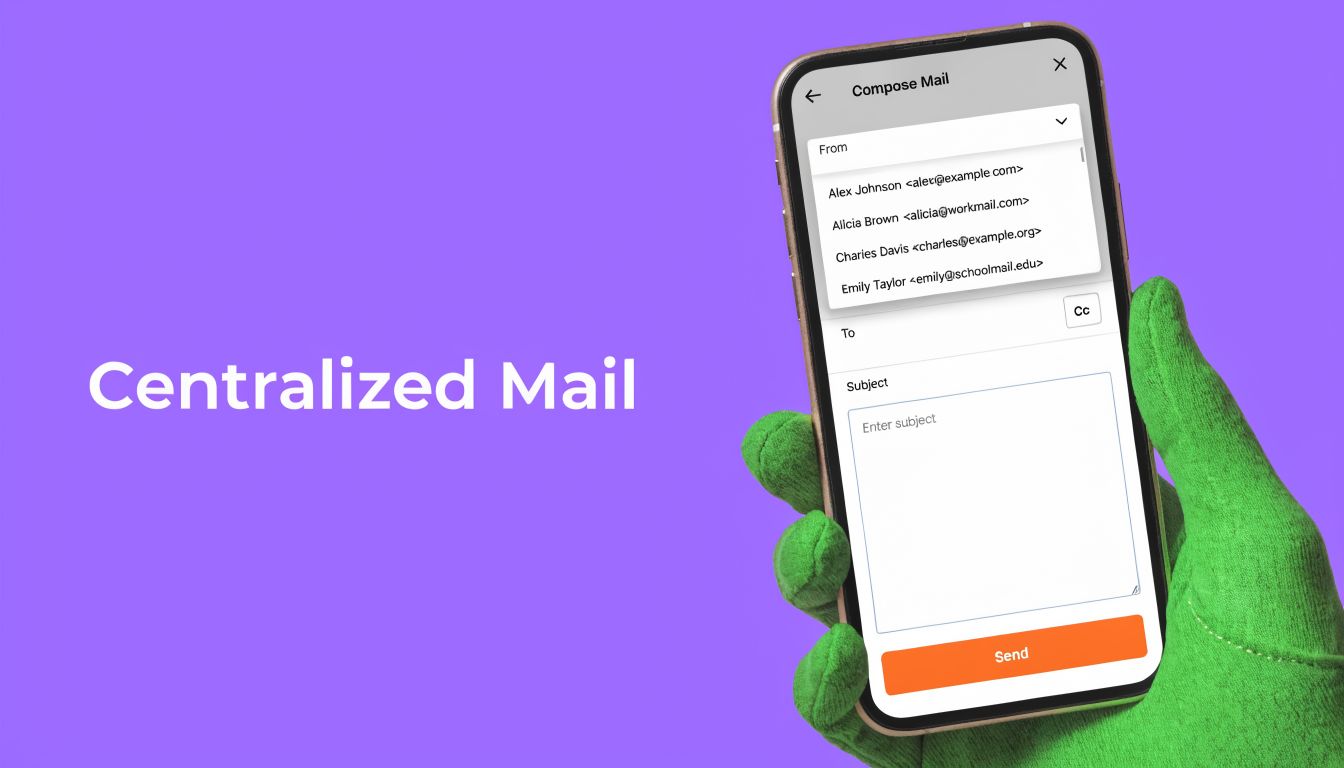
Sometimes the address you want to use isn’t a Gmail or Workspace alias at all. It’s an address hosted elsewhere, such as you@yourdomain.com from your web host or registrar.
In that case, you’re not creating a true Gmail alias. You’re turning Gmail into the interface that sends mail on behalf of that external account.
How this differs from a Workspace alias
A Workspace alias is native to your Google environment. “Send mail as” with SMTP is more like connecting another mail system to Gmail’s compose window.
That difference affects reliability. Native aliases are simpler to manage at scale. External SMTP gives flexibility, but setup quality matters more.
If you’re still deciding where that external address should live, this overview of how to choose your email server hosting environment is useful before you wire Gmail into it.
The setup inside Gmail
Open Gmail, then:
- Go to Settings
- Open Accounts and Import
- Under Send mail as, click Add another email address
- Enter your external address
- Enter the SMTP details provided by your host
- Complete the verification email step
- Test by sending a message to yourself first
You usually need four things from the host: the SMTP server name, port, username, and password or app-specific credential. Gmail walks you through the form, but it can’t guess bad server details.
A practical note from the earlier Zapier guidance is that this method has an 85-95% first-try success rate, while 5-10% of users hit bounces because their external domain’s SPF record is misconfigured. That’s common, and usually fixable, but it explains why this method feels fine for some people and fragile for others.
When this setup is worth it
Use SMTP send-as when:
- You already own a non-Google address and don’t want another inbox tab open all day
- You prefer Gmail’s interface over your host’s webmail
- You need one reply workspace for multiple addresses
Avoid it when you need clean team ownership across many users. That’s where Workspace aliases usually age better.
For people building automations around reply handling, it’s also worth understanding what email workflows look like once Gmail becomes the command center. This primer on email automation in Gmail workflows is useful if you’re trying to reduce manual triage after the SMTP setup is done.
Pro Tips for Alias Management and Productivity
Alias setup is easy compared with alias discipline. Most inbox systems fail because naming, replies, and ownership drift over time.
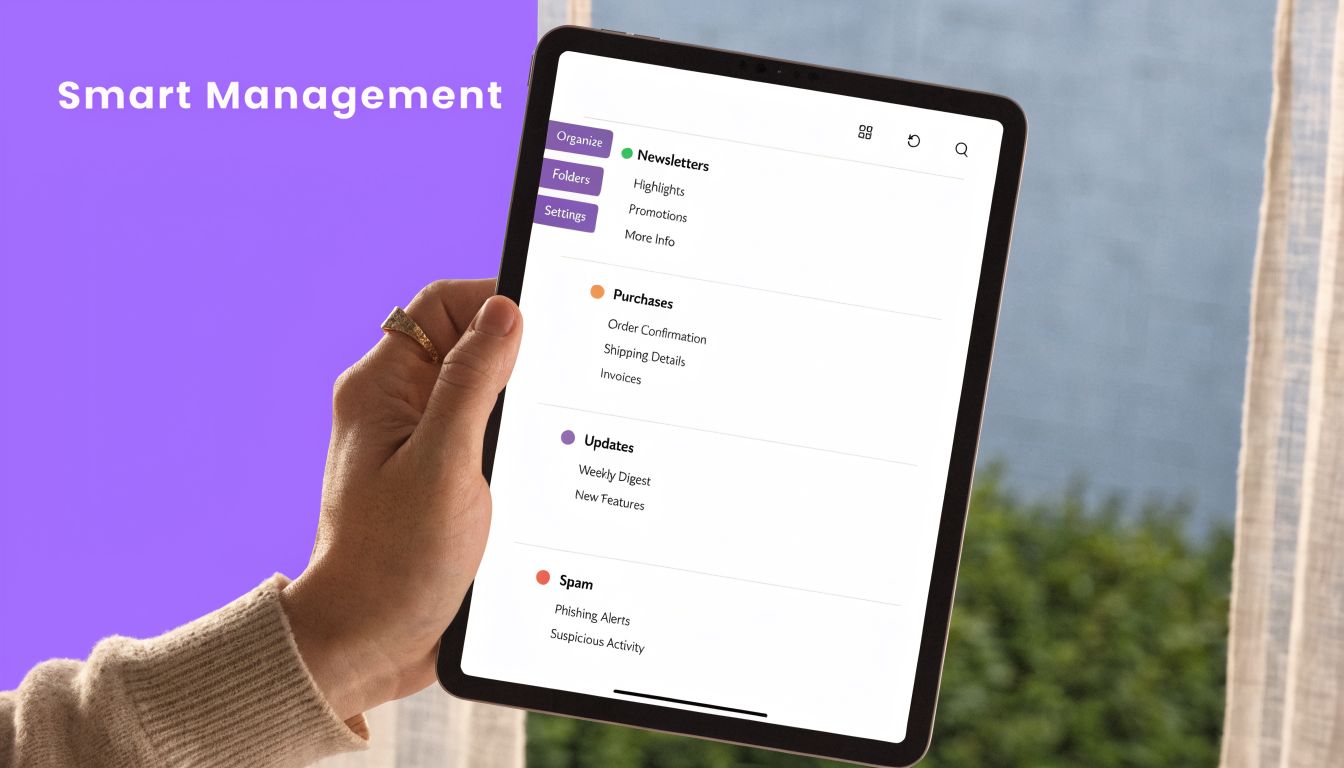
The people who get long-term value from aliases treat them like a lightweight operating system. They decide what each address means, who owns it, and how replies should behave.
A 2022 Google workplace productivity study found that professionals who use features like email aliases effectively save 2.5 hours per week on inbox management. That figure appears in Google’s Workspace materials, but the useful takeaway isn’t the number. It’s that aliases save time only when the surrounding habits are consistent.
Set conventions before you need them
Start with naming. If personal aliases are random, filters become harder to maintain.
Good patterns:
- Function-based personal tags:
+news,+orders,+banking - Client-based tags:
+clientname - Temporary testing tags:
+testvendor
For teams, role names should be obvious and durable. support@, billing@, and renewals@ age better than clever one-off labels.
Then change the reply behavior inside Gmail. The setting that matters is Reply from the same address the message was sent to. Without it, people accidentally answer a role email from their primary identity, which looks sloppy and confuses customers.
A clean alias system reduces decision fatigue. You shouldn’t have to think about which identity to use on every reply.
Build workflows around the alias, not around memory
Aliases work best when they trigger a process.
Try workflows like these:
- Support alias: route all incoming support threads to one label and assign ownership manually or through your helpdesk
- Sales alias: keep outbound conversations under the same role identity for continuity
- Receipts or purchase alias: forward or archive automatically
If you want an example from the Outlook side, Receipt Router has a practical guide on how to automate emails with Receipt Router. The product is different, but the lesson carries over. Alias-based forwarding only helps when the destination and rule logic are well defined.
Keep your inbox review loop simple
Don’t build twenty labels on day one. Start with a few you will review.
A simple weekly check works:
- Review which aliases get useful mail
- Retire tags you no longer use
- Merge overlapping filters
- Check whether role addresses still have clear owners
If your Gmail labels and rules are already getting out of hand, this guide on how to organise your inbox is a good reset before you add more layers.
Troubleshooting Common Gmail Alias Issues
Most alias problems fall into a few predictable buckets. Fix the symptom, then trace it back to whether you’re dealing with a personal Gmail variation, a Workspace alias, or an SMTP send-as address.
The verification email never arrives
If you’re adding an external address with SMTP and Gmail sends a verification message that doesn’t show up, check the spam folder on the destination account first.
Then verify that you entered the correct external address and mail server details. If the mailbox itself can’t receive mail normally, Gmail can’t complete the ownership check either.
Replies go out from the wrong address
This is usually a Gmail setting problem, not an alias failure.
Open Accounts and Import and change the reply behavior so Gmail replies from the same address that received the message. If you skip this, Gmail may default to your primary account and expose the wrong identity to clients or customers.
Sending works for some addresses but bounces for others
With Workspace or external domains, this often points to domain authentication problems or routing issues. The underlying fix usually lives with the admin or hosting provider, not the person composing the email.
If mail is arriving fine on other devices but not where you expect, this broader troubleshooting guide for emails not coming through on iPhone can help separate device-sync issues from true alias problems.
A website rejects your plus alias
That’s normal on some signup forms.
Use a dotted variation instead, or use a dedicated address for services that are strict about form validation. Personal +aliases are convenient, but they aren’t accepted everywhere.
If your aliases are set up but replying still eats too much time, Ellie helps turn Gmail and Outlook into a faster workflow. It drafts replies in your voice, works inside your existing inbox, and is especially useful when you manage multiple roles, shared addresses, or high-volume client conversations.