
Organise Your Inbox: A Guide for Gmail & Outlook
Your inbox probably looks fine from the outside. A few unread badges. A few starred messages. A few things you swear you’ll answer later. But open it, and the problem becomes obvious. Important threads sit beside newsletters you never read. Receipts, calendar updates, automated alerts, and old conversations all compete for the same attention. Every scan through the list feels like work before the main work starts.
That mess has a cost. 42% of people check their inboxes three to five times daily, and while 35% spend less than an hour on email, another 35% spend between two and five hours on it, according to ZeroBounce’s email statistics report. That split tells you something important. Email doesn’t stay a small task by default. It grows until you put a system around it.
The usual advice on how to organise your inbox is too small. It tells you to make folders, unsubscribe from a few lists, and aim for Inbox Zero. Useful, but incomplete. Gmail and Outlook both have far greater capabilities than is typically utilized. The practical path is phased: do a fast cleanup, install a simple sorting system, add stronger prioritisation, and then decide how much you want automation or AI to handle for you.
Table of Contents
- Escaping the Digital Avalanche
- The Great Inbox Purge Using Search Operators
- Building Your Automated Sorting System
- Advanced Prioritization for Power Users
- Storage Recovery and Long-Term Maintenance
- The Future of Inbox Management AI Assistants
- Frequently Asked Questions About Inbox Organization
Escaping the Digital Avalanche
Monday, 8:47 a.m. You open Gmail or Outlook to answer one urgent message. Forty minutes later, you have clicked through receipts, internal CCs, calendar noise, newsletters you meant to unsubscribe from, and three threads you reread without making a decision. The original message is still waiting.
That fatigue starts early because a messy inbox is not a reading problem. It is a decision problem. Every message asks you to sort, defer, reply, save, delete, or remember it later. Reopening the same email five times usually means the system is weak, not that your willpower is.
I see the same pattern with clients across sales, operations, consulting, and leadership roles. They use the inbox as task list, filing cabinet, reminder system, and communication channel all at once. Gmail and Outlook can support a far better setup, but only if the inbox returns to its proper job: triage.
Practical rule: If your inbox mixes tasks, reference material, newsletters, receipts, and conversations in one stream, the inbox is doing storage work when it should only be doing triage.
Unread counts are not a character test. They are usually a sign that too many message types are competing for the same attention. The fix is not stricter self-discipline. The fix is a phased system: first clear the backlog fast, then build rules and folders that keep low-value mail out of view, then add AI tools only where they reduce manual sorting and follow-up.
There is a trade-off here. A heavily organized setup can become fragile if it depends on dozens of filters and folders nobody maintains. A bare inbox with no structure creates constant interruption. The middle ground works best: a fast cleanup, a small set of reliable buckets, and clear rules for what deserves your eyes today.
If you want a complementary set of tactical ideas, Pitch Deck Scanner’s email management tips are useful for tightening habits around processing and follow-up.
The Great Inbox Purge Using Search Operators
Manual cleanup is slow because it asks you to review email one message at a time. Search operators let Gmail and Outlook do the sorting first. That changes the job from “decide on everything” to “review a precise batch and clear it.”
Why search beats manual cleanup
Most old inbox clutter falls into predictable groups. Newsletters. Social alerts. Shipping updates. Receipts. Promotions. Internal notifications. Once you search those groups directly, cleanup becomes much faster and safer.
Start with low-risk categories:
- Marketing mail: Search for sender domains you always archive or delete, such as store newsletters or webinar reminders.
- Automated notifications: Build batches around phrases like “no-reply,” “notification,” “digest,” or “update.”
- Aged mail: Old messages are easier to judge. If you didn’t need them months ago, you probably don’t need them now in your primary inbox.
- Large emails: Good for storage cleanup, especially in Gmail accounts near quota.
Search first, scan the result set, then bulk archive or delete. Never bulk-delete from memory.
Gmail vs Outlook Search Cheatsheet
| Action | Gmail Operator | Outlook Operator |
|---|---|---|
| Find old mail from one sender | from:example@company.com older_than:1y | from:example@company.com received:<01/01/2024 |
| Find newsletters | unsubscribe or label:^smartlabel_newsletter | unsubscribe |
| Find emails with attachments | has:attachment | hasattachments:yes |
| Find large emails | larger:10M | size:>10MB |
| Find unread old mail | is:unread older_than:90d | isread:no received:<01/01/2025 |
| Find category by subject | subject:(invoice OR receipt) | subject:invoice OR subject:receipt |
| Exclude starred or flagged items | -is:starred | -flag:flagged |
| Find mail in a label or folder | label:promotions | folder:Inbox or a folder name search |
A few reliable examples you can paste and adapt:
- Gmail newsletters older than a year:
unsubscribe older_than:1y -is:starred - Gmail big files you may want to archive:
has:attachment larger:10M - Outlook old automated mail:
from:no-reply received:<01/01/2024 - Outlook unread clutter from a sender:
from:example@company.com isread:no
Safe cleanup sequence
Use this order in both Gmail and Outlook so you don’t create new problems while trying to organise your inbox.
-
Archive before delete for uncertain batches
If the search result includes things you may need later, archive them first. You remove them from view without risking loss. -
Delete obvious junk in bulk
Promotions, stale alerts, expired event reminders, and notifications you’d never search for again can go straight to Trash or Deleted Items. -
Spot-check every batch
Open a few messages from the top, middle, and bottom of the result set. That quick sample catches bad searches. -
Unsubscribe while you’re there
If a sender keeps appearing in cleanup searches, unsubscribe before you move on. Otherwise the pile returns next week. -
Save repeat searches
Outlook search folders and Gmail filters can turn today’s cleanup logic into a standing system.
A purge should feel surgical, not dramatic. If you’re hesitating over every result, the search is too broad. Tighten it and keep moving.
Building Your Automated Sorting System
The purge gives relief. It doesn’t give control. Control comes from deciding where new mail should go before it arrives.
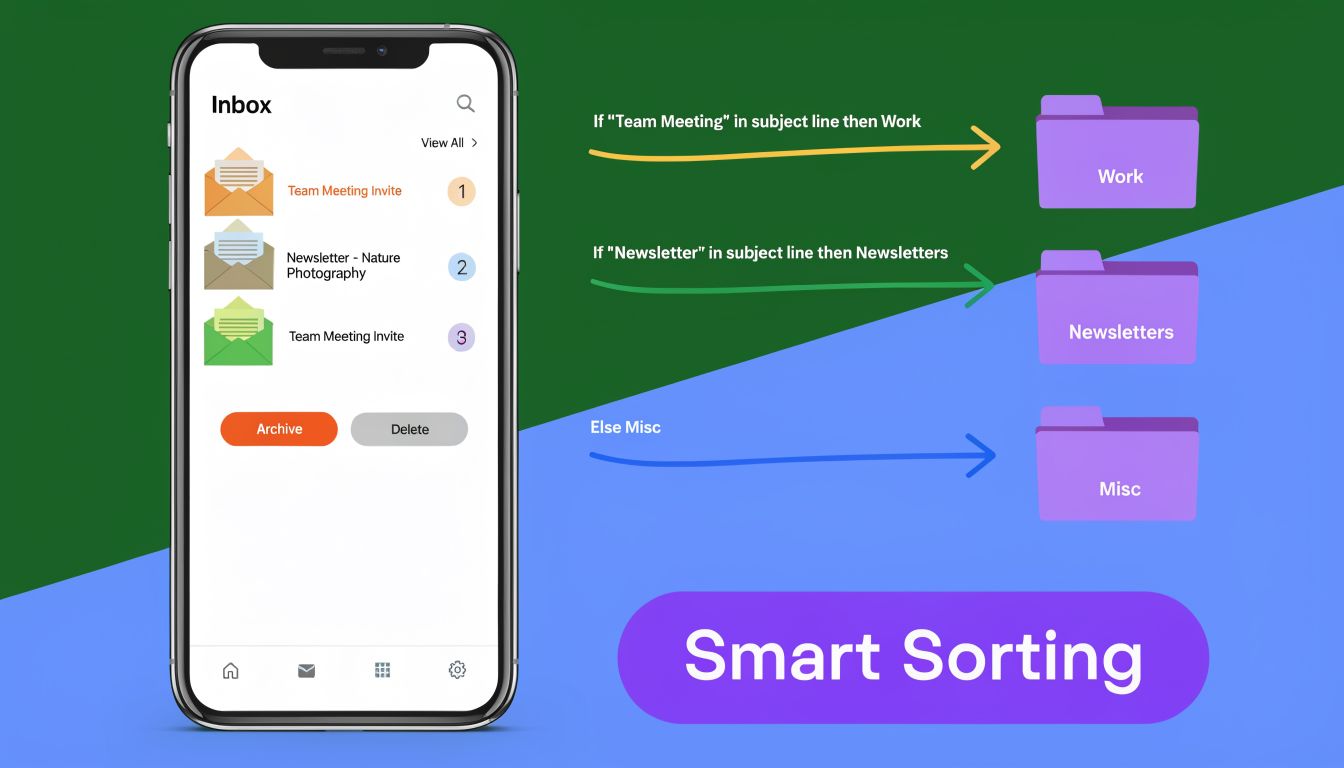
Use buckets, not a maze of folders
Individuals tend to overbuild their system. They create a folder tree that looks tidy for a day and annoying forever after. A simpler model works better: 4 to 6 status buckets.
Experts recommend a 4 to 6 status bucket system, such as Action, Waiting on, Read later, and Reference, instead of complex folder hierarchies. Studies show this method can cut email retrieval time by 70% because modern search is usually faster than manual filing, as described in Superhuman’s guide to organizing email.
A practical setup for Gmail or Outlook looks like this:
-
Action
Mail that needs a decision, reply, or task today. -
Waiting on
Messages where you’ve replied or delegated something and need to track the outcome. -
Read later
Newsletters, long updates, industry reading, and non-urgent memos. -
Reference
Receipts, confirmations, policy emails, and threads you may need to search later. -
Archive
Everything resolved.
The moment you create folders by client, project, urgency, topic, and person all at once, the system starts asking too much from you.
How to build it in Gmail and Outlook
In Gmail, use labels and filters. In Outlook, use folders, categories, and rules. The logic is the same.
Try these automations first:
-
Newsletter to Read later
Filter messages containing “unsubscribe” or from known publication senders. Skip the inbox if you trust the source pattern. -
CC mail to Reference
If you’re copied but not addressed directly, route it out of the main inbox unless the sender is high priority. -
Client or boss to Action
Apply a label, category, or flag so those messages remain visible. -
Receipts and confirmations to Reference
Keywords like invoice, receipt, order, booking, and confirmation work well. -
Auto-reports to archive
Dashboards and daily summaries often don’t need inbox time at all.
For a broader automation mindset, this explanation of email automation is useful because it frames rules as workload reduction, not just neatness.
Keep setup restrained. If a rule needs constant babysitting, delete it. A small number of stable filters beats a large number of clever ones.
Advanced Prioritization for Power Users
An organised inbox still fails if everything looks equally urgent. Power users need a triage model, not just sorting. The simplest one is the Eisenhower Matrix: urgent and important, important but not urgent, urgent but not important, and neither.
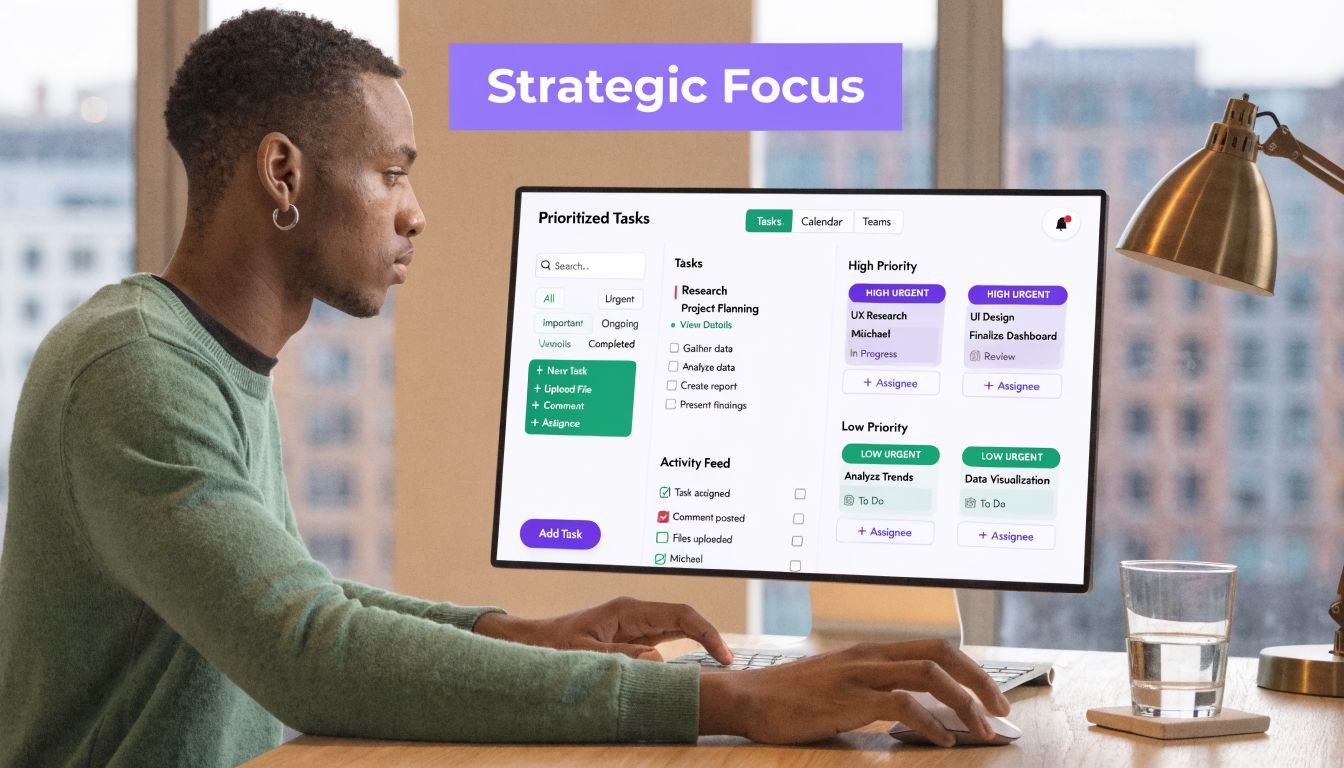
Turn the Eisenhower Matrix into labels and flags
You don’t need to label every email with all four quadrants. You only need enough structure to stop treating all mail the same.
According to Mailbird’s overview of email organization mistakes and fixes, applying the Eisenhower Matrix with email rules can help 75% of adopters reduce their inbox to fewer than 50 emails daily, and 30% to 50% of daily volume can often be auto-archived as non-urgent items.
Use that logic like this:
-
Urgent and important
Star or flag it. Keep it in Action. These are client escalations, time-sensitive approvals, or problems tied to revenue, deadlines, or people. -
Important but not urgent
Convert it into a task and remove it from sight. Gmail Tasks, Microsoft To Do, Todoist, or your calendar all work. -
Urgent but not important
Delegate if possible. Forward it, assign it, or move it to a team mailbox. -
Neither
Archive or delete without debate.
Use snooze to protect attention
Snooze is one of the most underused features in both Gmail and Outlook. It solves a common mistake: seeing a message too early and then carrying it around mentally all day.
Good candidates for snooze:
- Follow-ups you can’t act on yet
- Travel details you only need tomorrow
- Meeting prep that matters next week
- Reading-heavy messages that don’t require a reply now
Your inbox should show what deserves attention now, not everything that exists.
For high-volume roles, combine sender-based rules with subject keywords. A rule like “from client domain + subject contains urgent/problem/renewal” can surface genuine priorities fast. Be selective. If every important-seeming word triggers a flag, nothing is prioritized.
Storage Recovery and Long-Term Maintenance
Cleanup is frequently delayed due to the fear of deleting the wrong thing. That fear is reasonable. The fix is knowing where recovery lives and building a short maintenance rhythm so you don’t need another giant reset.
How to recover deleted email
In Gmail, deleted messages go to Trash. In Outlook, they go to Deleted Items. If you remove something by mistake during a purge, that’s the first place to check.
A cautious workflow helps:
-
Archive uncertain email first
Archive removes inbox clutter without removing the message. -
Delete only obvious low-value mail
Old promotions, stale alerts, and duplicate notifications are safer bulk-delete candidates. -
Check recovery folders before panicking
Search inside Trash or Deleted Items by sender, subject, or date.
If your mail appears missing on mobile, the issue isn’t always deletion. Sync quirks and filtering can also be the cause. This guide on why emails may not come through on iPhone is a practical reference if messages seem to vanish between devices.
Weekly upkeep that keeps the system alive
You don’t need a daily perfection ritual. You need one short review each week.
Use a recurring calendar block and do three things:
-
Clear Action
Reply, task, delegate, or archive. -
Review Waiting on
Chase stale threads and close loops. -
Check storage pressure
Search for large attachments and archive or delete what you no longer need.
A good maintenance routine is boring. That’s the point. If your system depends on motivation, it won’t last.
The Future of Inbox Management AI Assistants
Rules and filters handle patterns. They don’t handle judgment very well. Senders change addresses. The same person sends both critical and trivial mail. One thread needs a careful reply, another only needs a quick confirmation, and a third needs data from a CRM or helpdesk before anyone should answer.
Where rules stop working
For individuals, the break point usually comes with volume. For teams, it comes with context. A support rep may need plan details. A sales manager may need a renewal date. An operations lead may need billing status before replying.
The broader productivity problem is large. Professionals spend nearly 28% of their workweek on email, and time is also lost switching to other systems to find missing context, as noted by Tufts’ article on taming an overflowing inbox. That’s where AI starts to matter.
What AI can do that filters cannot
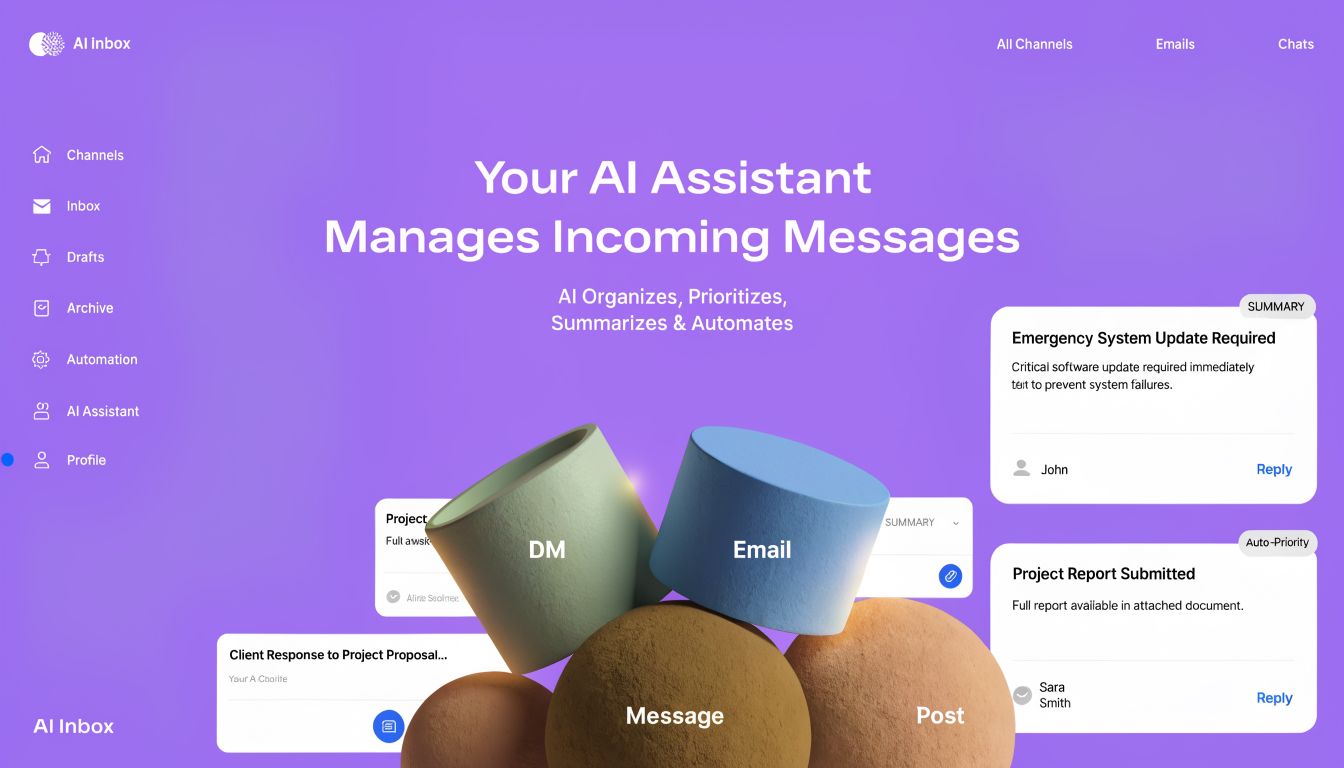
AI assistants can review thread context, identify messages that require attention, and draft replies in a consistent tone. Some also pull in information from external systems so the reply is grounded in current facts rather than memory.
If tone is part of the struggle, especially when you need to soften or sharpen a message quickly, tools that use Tonen for message tone can help with rewriting before you send.
For people deciding between human delegation and software help, this comparison of virtual assistants and AI email assistants is a useful way to think about trade-offs.
One option in this category is Ellie, which drafts replies inside Gmail and Outlook and can use company knowledge or live lookups for team responses. That doesn’t replace good inbox structure. It sits on top of it. The cleaner your triage system, the more useful AI becomes.
Frequently Asked Questions About Inbox Organization
Is Inbox Zero realistic for busy professionals
Yes, if you define it correctly. Inbox Zero doesn’t mean every email is finished forever. It means your inbox isn’t acting as a storage unit or reminder system. Action items live in Action or tasks. Reference items are archived or labeled.
How long should the first cleanup take
Longer than people want, shorter than they fear. The first purge is usually a focused session, not a multi-day project, if you use search operators instead of manual sorting.
Should I delete or archive
Archive by default when you’re unsure. Delete obvious junk. That one rule reduces stress and speeds up decisions.
How many folders or labels do I need
Fewer than you think. A small bucket system is easier to maintain than a detailed filing tree.
What’s the biggest mistake people make
They use unread email as a reminder list. That turns the inbox into a visual to-do pile and makes every scan slower.
If your inbox is full of messages that still need thoughtful replies, not just sorting, Ellie is worth a look. It works inside Gmail and Outlook, drafts responses in your tone, and helps reduce the time you spend reopening the same threads just to figure out what to say.