
How to Change Your Email Signature in Gmail: 2026 Guide
You’re about to send an important email, you glance at the bottom, and there it is. Your old job title. A phone number you don’t use anymore. Maybe a link that no longer works. It’s a tiny detail, but it changes how polished the message feels.
That’s why knowing how to change your email signature in Gmail matters more than people think. A good signature saves time, removes friction for the person reading your email, and keeps your professional identity consistent. It also helps when you’re juggling different roles, sending from desktop and mobile, or trying to keep replies shorter than first-touch emails.
If you also care about the message above the signature, not just the footer, this guide on AI email personalization is a useful companion. The signature handles your contact details. The body of the email handles the relationship.
Table of Contents
- Your Professional Handshake Needs an Update
- Changing Your Gmail Signature on Desktop
- Updating Your Signature on the Gmail Mobile App
- Advanced Signature Management and Customization
- Professional Email Signature Best Practices
- Gmail Signature Frequently Asked Questions
Your Professional Handshake Needs an Update
An email signature is the part of your message people expect to trust without thinking about it. If it’s outdated, cluttered, or inconsistent, the whole email feels less reliable. That’s why a stale signature often causes more damage than people realize, especially in client work, sales conversations, recruiting, or executive communication.
The fix is usually simple. The annoying part is that users often only notice the problem when they’re already halfway through sending something important.
A signature isn’t decoration. It’s your fastest way to answer, “Who is this, what do they do, and how do I reply or reach them?”
Gmail gives you enough control to keep this organized, but the useful options are spread across desktop and mobile. The basic edit is easy. The productive setup takes a little more thought. That includes different signatures for new emails and replies, separate versions for multiple roles, and a quick check to make sure your edits are saved.
Changing Your Gmail Signature on Desktop
If you want the full Gmail signature editor, use desktop Gmail in a web browser. That’s where Gmail gives you the most control over formatting, links, images, and default signature behavior.
Find the signature editor fast
Google’s Gmail signature editor sits behind the gear icon in the top-right corner. Click it, choose See all settings, stay in the General tab, then scroll to Signature. HubSpot’s 2026 guide says the update itself typically takes about 2 minutes once you’re in settings, using that same path through Gmail’s menus, as noted in HubSpot’s Gmail signature walkthrough.
That path matters because Gmail hides the signature settings lower on the page than many people expect. If you only open the quick settings panel, you won’t see the editor. You need the full settings screen.
Edit, create, and save without losing changes
Once you’re in the Signature section, Gmail lets you either edit an existing signature or click Create new and start fresh. The practical flow on desktop is straightforward:
- Open Gmail in your browser
- Click the settings gear
- Choose See all settings
- Stay in the General tab
- Scroll to Signature
- Edit an existing signature or create a new one
- Scroll to the bottom and click Save Changes
That last step is where people slip. You can make the edit, see it in the editor, switch tabs, and assume it’s done. It isn’t done until you save.
A few practical choices help here:
- Use one clean primary signature if you mostly send the same type of email every day.
- Create a new signature instead of overwriting the old one if you’re experimenting with layout, title wording, or link placement.
- Keep formatting restrained when you’re editing inside Gmail. Overstyled signatures often look fine in the editor and messy in a real thread.
Practical rule: After any signature update, compose a draft and send yourself a test email before moving on.
If your goal is speed, desktop Gmail is still the easiest place to make the change properly. It’s also the place to manage the more useful settings that most quick tutorials skip.
Updating Your Signature on the Gmail Mobile App
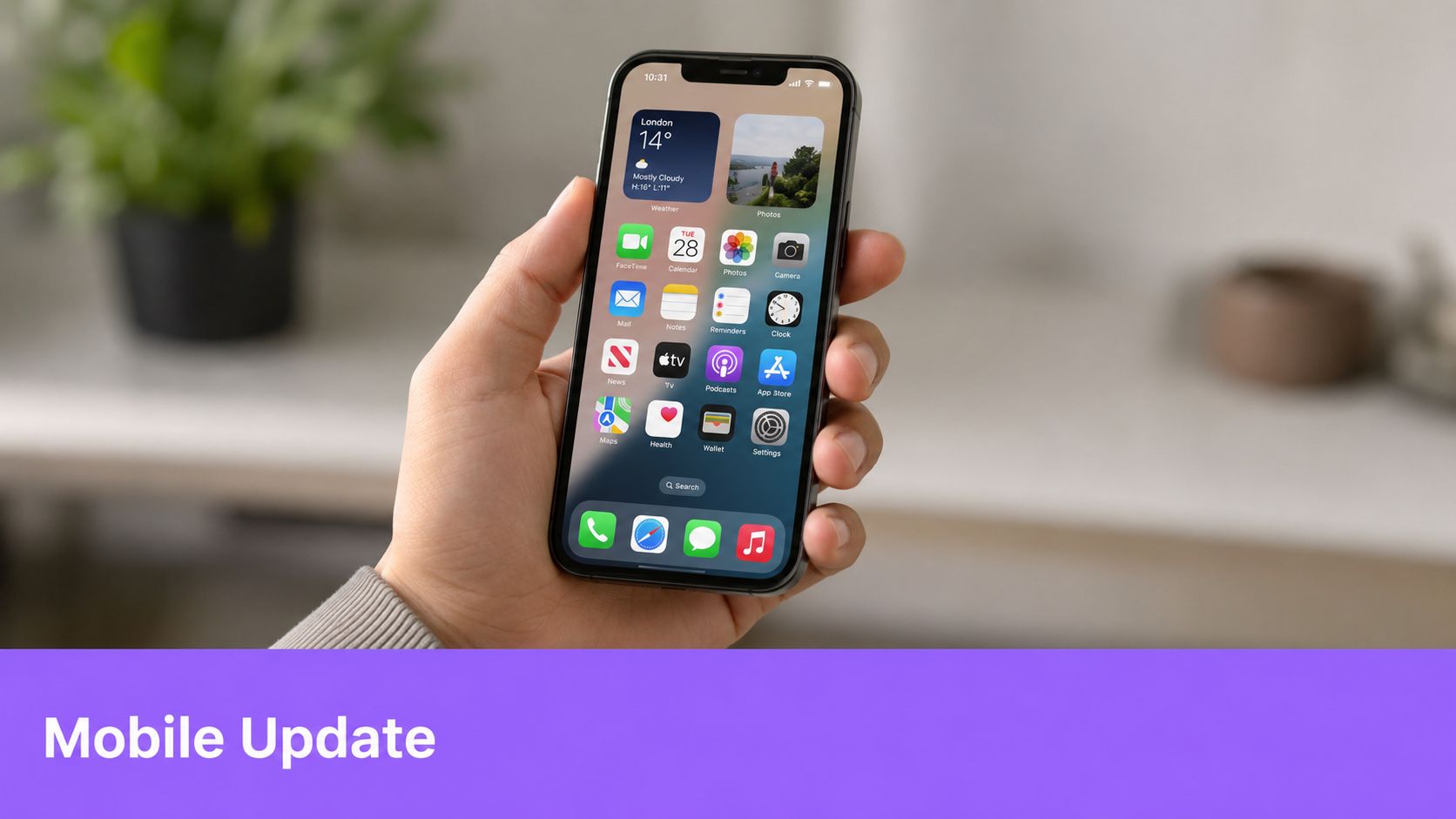
The mobile app is different. It’s good for quick edits on the go, but it’s not where Gmail gives you the same depth of control you get on desktop. That matters if you’re expecting your full desktop signature, with formatting or images, to behave the same way on your phone.
On iPhone
In the Gmail app on iPhone, open the menu, go to Settings, choose the account you want, then open Signature settings. From there, you can turn on the mobile signature and edit the text.
Generally, the right move on iPhone is to keep the mobile version shorter than the desktop one. You’re usually replying quickly, often from a smaller screen, and long branded signatures feel heavy in that context.
On Android
On Android, the path is similar but the naming may differ slightly. Open the Gmail app, tap the menu, go to Settings, choose your account, then look for Mobile Signature. Enter the text you want and save it.
A few mobile realities are worth remembering:
- Mobile is better for simple text updates than for design-heavy signatures.
- Shorter is safer when you’re sending from a phone.
- Separate setup matters because your mobile signature may not mirror the exact structure you use on desktop.
If you send a lot of emails from your phone, think of the mobile signature as a compact version of your desktop identity, not a perfect clone.
Advanced Signature Management and Customization
Gmail offers greater utility than a basic “add name and phone number” tool. The big productivity win isn’t just editing one signature. It’s deciding which signature appears in which situation.

Use more than one signature on purpose
A commonly missed part of Gmail signature setup is multi-signature behavior. Gmail lets you create multiple signatures, rename them, delete them, and choose separate defaults for new messages and replies/forwards, as documented in Google’s Gmail help page for signatures.
That sounds small, but it solves a real workflow problem.
A full signature works well for:
- New outreach emails
- First conversations with clients
- Partnership or recruiting messages
A shorter signature works better for:
- Replies in an active thread
- Internal communication
- Fast follow-ups that don’t need repeated detail
If you wear more than one professional hat, create separate signatures for each role. For example, one can emphasize your company title and booking link, while another is more neutral for advisory work or investor conversations. If you also send from an alias, this guide on adding an email alias to Gmail is useful because aliases and signatures work best when you set them up together.
The most efficient signature setup is rarely one signature. It’s usually a small set of signatures with clear jobs.
Add images and keep control of the layout
Gmail signatures aren’t limited to plain text. A Google Workspace admin guide confirms that Gmail signatures can include images from a web address, Google Drive, or an uploaded file, using the same Settings → General → Signature path before insertion, as explained in Google Workspace’s guide to Gmail user signatures.
That opens the door to a logo, a headshot, or small branded elements. It also creates trade-offs.
What works:
- A small image with a clear purpose, such as a company logo
- Hyperlinked text for your website or booking page
- Minimal layout complexity so the signature stays readable in long threads
What usually doesn’t:
- Large graphics
- Too many social icons
- Heavy formatting that depends on one email client rendering perfectly
If you use AI tools to draft messages inside Gmail, signature consistency also matters. Tools such as Ellie work inside Gmail and Outlook to prepare drafts, so keeping your sign-off choices standardized makes those drafts easier to review quickly.
Professional Email Signature Best Practices
A signature should help the reader act. It shouldn’t ask them to decode your role, scan a wall of links, or scroll past a mini brochure every time you reply.
Good signatures feel invisible in the best way. They answer basic questions fast and stay out of the way.
What works in a professional signature
The strongest signatures usually share the same traits:
- Clear identity: Name, role, company, and the best contact path are easy to spot.
- Useful links only: Add links that support the conversation, not every profile you’ve ever created.
- Visual restraint: Simple formatting travels better across devices and email clients.
- Thread awareness: A shorter reply signature keeps long conversations cleaner.
- Testing: Send a message to yourself and view it on desktop and mobile before calling it done.
A lot of signature problems aren’t design problems. They’re workflow problems. The most common one on desktop is simple: after editing, people forget to scroll down and click Save Changes, which leaves the update unapplied, as shown in this desktop Gmail signature walkthrough on YouTube.
That’s also why signature quality connects directly to broader email quality. If you want the message itself to match the professionalism of the footer, this guide on writing professional business emails is worth reviewing.
Keep the signature lighter than your first instinct. Most people add too much, not too little.
If you often send introductions, handoffs, or client-facing replies, your signature should support that style of communication. This article on how to introduce yourself via email pairs well with a signature cleanup because introductions are where outdated sign-offs stand out most.
Professional Signature Checklist
| Element | Best Practice |
|---|---|
| Name | Use the name people should actually recognize and reply to |
| Job title | Keep it current and specific |
| Company | Include it when it helps the recipient place you quickly |
| Phone number | Add it only if you want people to use it |
| Website link | Include one relevant destination, not a long list |
| Social links | Limit them to professional profiles you actively use |
| Images | Use a small, purposeful image only if it renders cleanly |
| Length | Keep it compact so replies don’t become cluttered |
| Reply version | Create a shorter signature for ongoing threads |
| Link testing | Click every link in a test email before using it |
| Mobile readability | Make sure it still looks clean on a phone |
| Final save | Always scroll down and save after editing |
Gmail Signature Frequently Asked Questions
Why does my signature look different to recipients?
Different email clients render formatting differently. Dense layouts, multiple fonts, and image-heavy signatures are more likely to shift. Simpler signatures usually travel better.
Can I create a custom-styled signature in Gmail?
Gmail supports formatting in the desktop editor, and desktop Gmail also supports image insertion. In practice, lighter formatting is more dependable than elaborate styling.
Why is my signature image broken or awkward?
This usually points to the image source, size, or layout choice. If you use an image, keep it purposeful and test it in a real sent email, not just in the editor preview.
Does my signature affect spam placement?
It can influence how polished and technically clean an email looks, but the safest rule is practical: avoid bloated signatures, oversized graphics, and unnecessary clutter.
Should replies use the same signature as new emails?
Usually no. A shorter reply signature is cleaner and easier on long threads.
If you spend a lot of time in Gmail and want the rest of your email workflow to be as efficient as your signature setup, Ellie is one option to consider. It drafts replies inside Gmail and Outlook based on your tone and existing email style, which helps when you want consistent sign-offs and faster inbox handling without rebuilding every response from scratch.