
How to Write Help Center Articles People Actually Use
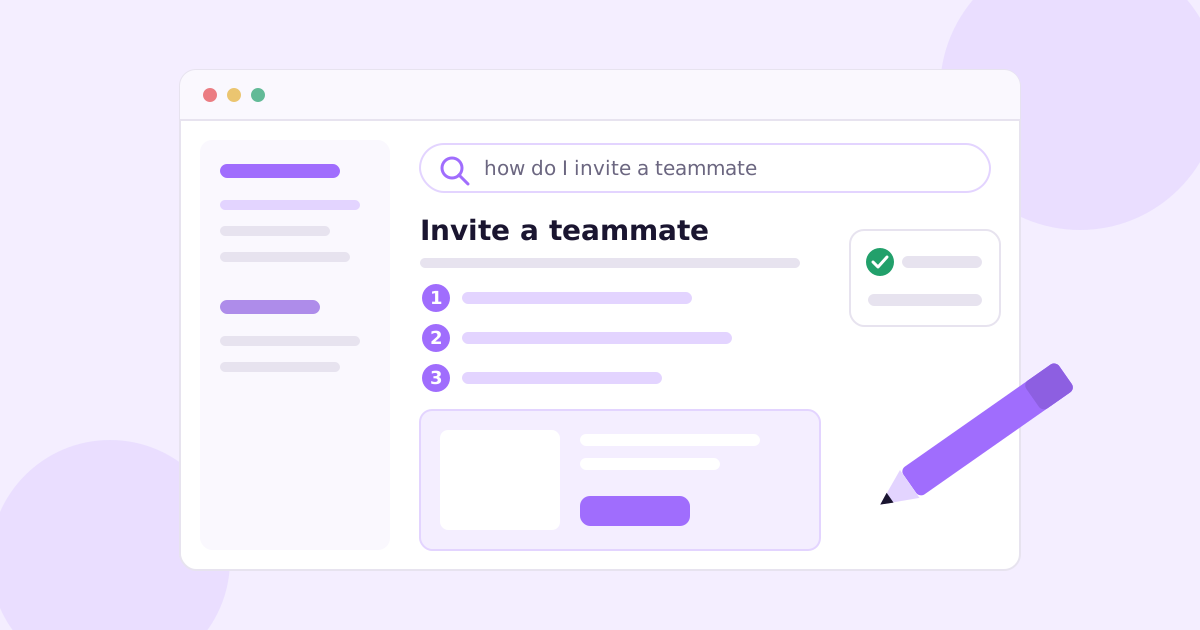
Someone types “export invoices” into your help center search. They get three results: “Billing Overview”, “Reports” and “Getting Started with Data”. None of them say export. They close the tab and email you.
That’s the problem with most help center articles. They’re organized around how the product is built, not around what people are trying to do.
So here’s the short answer. To write help center articles people actually use: name each one after a single task in the customer’s words, say in one line what it does, list anything they need first, give numbered steps with one action each, add a screenshot where people usually get lost, and finish with what they should see when it worked. One article, one task. If you catch yourself writing “you can also”, that’s probably a second article.
The rest of this post is the detail: a template you can copy, a before and after rewrite, what to write first, and how to stop it all going stale six weeks after launch.
What makes a good knowledge base article?
Nobody reads help docs for fun. People arrive mid-task, a bit annoyed, usually from search (yours or Google’s) or from a link someone on your team pasted into a reply. They scan. They want to find step 3, do it, and leave.
So a good knowledge base article is one that lets a scanning, slightly annoyed person finish their task without reading anything twice. In practice that means:
- One article, one task. “Invite a teammate” and “Change a teammate’s role” are two articles. They link to each other.
- Titles look like search queries. People search with verbs: “cancel subscription”, “reset password”, “connect Slack”. Your titles should read the same way.
- Steps are numbered and atomic. One click or one field per step. If a step contains “and then”, split it.
- Exact UI labels, in bold. If the button says Add member, don’t write “click the invite button”. The reader is matching words on screen to words in your article.
- It ends with a result. “They’ll appear in the Members list with a Pending badge until they accept.” That line tells people they’re done, and it’s the one most writers leave out.
The Diátaxis framework splits documentation into tutorials, how-to guides, reference and explanation. Most help center articles should be how-to guides. The common mistake is mixing all four on one page, so someone looking for step 4 has to wade through three paragraphs on why the feature exists.
A help center article template you can copy
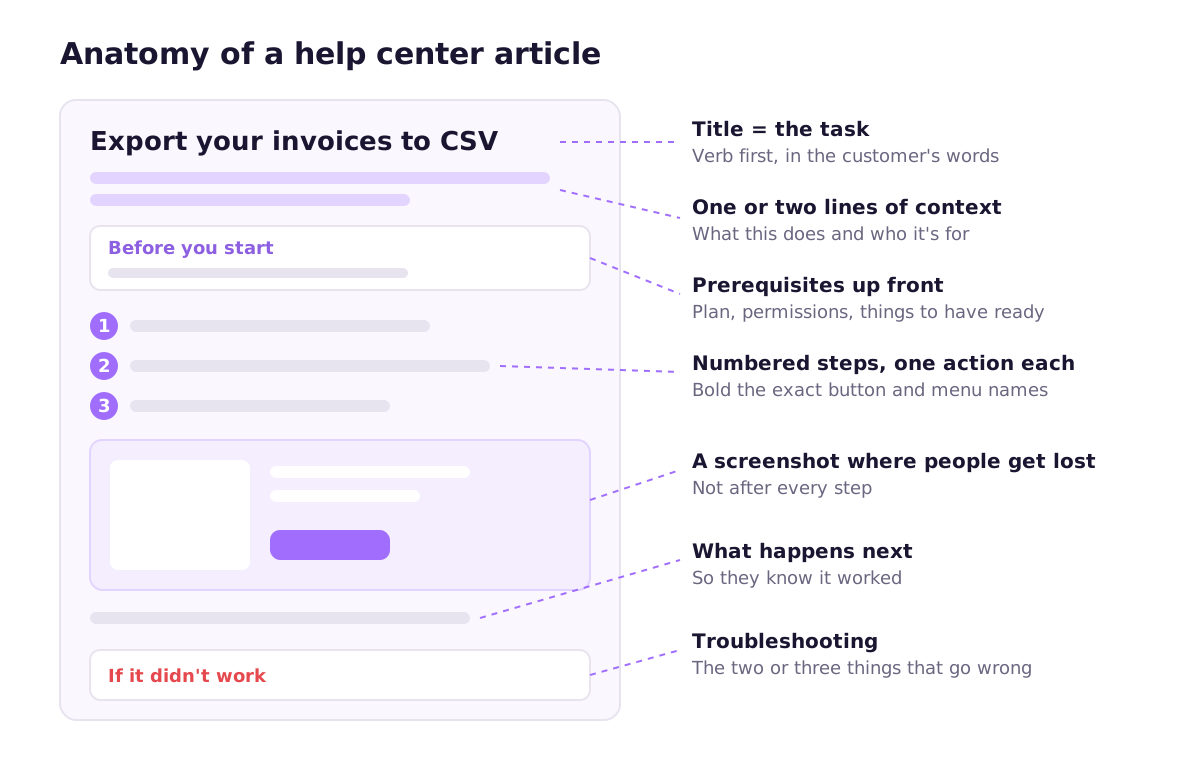
This is the template I’d start every task article from. It works in Zendesk, Intercom, Help Scout, GitBook, or a folder of Markdown files in your repo.
# [Verb] [the thing]
<!-- e.g. "Export your invoices to CSV" -->

[One or two sentences: what this does and when you'd want it.
Mention the plan or role if it's restricted.]

**Before you start**
- You need [role or permission], e.g. Admin or Owner
- [Anything to have ready: a file, an API key, a connected account]

## Steps

1. Go to **[Page name]** in the left sidebar.
2. Click **[Exact button label]**.
3. In **[Field name]**, enter [what, with an example value].
4. Click **[Confirm button label]**.

<!-- Screenshot of the step where people get stuck.
     Crop to the relevant area, highlight the target. -->

## What happens next

[What they'll see when it worked. How long it takes.
Who gets notified.]

## If it didn't work

- **[Symptom in the customer's words]**: [cause and fix]
- **[Second most common symptom]**: [cause and fix]

## Related

- [The task people usually do next]
- [The reverse task, e.g. "Remove a teammate"]
A few notes on using it.
The intro isn’t a sales pitch. “Our powerful export feature gives you full control of your data” tells the reader nothing. “Download every invoice in a date range as a CSV file you can open in Excel or Google Sheets” tells them whether they’re on the right page.
”Before you start” prevents the most tickets. The classic failure: someone follows six steps, then finds out at step seven that only admins can do it. Put permissions and plan limits at the top, not in a note at the bottom.
”If it didn’t work” should come from real tickets. Don’t invent troubleshooting. Look through the last month of support email and write down what people actually got stuck on. Two or three items is plenty. If you want a repeatable way to do that, we wrote a separate guide on turning support tickets into help articles.
Before and after: rewriting a typical help article
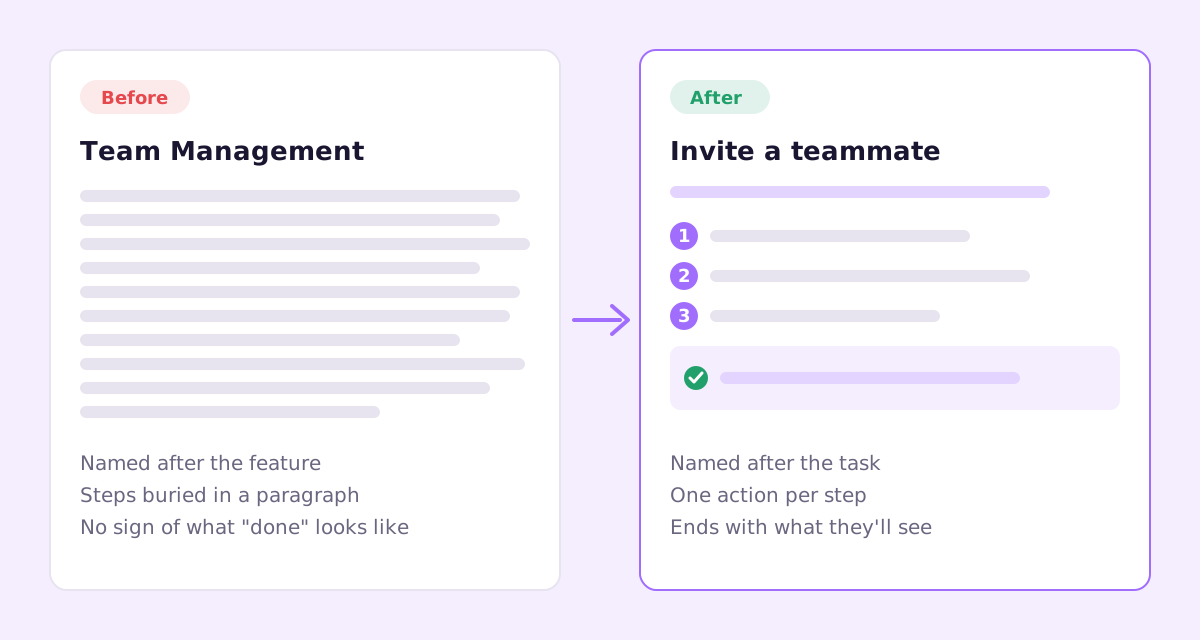
Here’s the kind of article that gets written the week a feature ships. The product is made up, the pattern isn’t.
Team Management
Our Team Management feature makes collaboration easy. From the Settings area you can manage your team, including adding new members via the Members tab, where you’ll find the Add member button, and choosing roles such as Admin, Editor or Viewer, which control what each person can access. Invited users will receive an email. Note that only Admins can add members and the number of seats depends on your plan.
Everything the reader needs is in there. It’s in the wrong order, under a title nobody searches for, and the permission catch is the last sentence.
Here’s the rewrite:
Invite a teammate
Add someone to your workspace so they can view and edit projects.
Before you start: you need to be an Admin. Each person uses one seat on your plan. You can see how many you have left in Settings > Billing.
- Go to Settings > Members.
- Click Add member.
- Enter their email address.
- Choose a role: Admin, Editor or Viewer.
- Click Send invite.
What happens next: they get an email invite. Until they accept, they show in the Members list with a Pending badge.
If it didn’t work: if Add member is grayed out, you’ve used all your seats. Remove someone or add seats in Settings > Billing.
Same facts, roughly the same length. But the title matches what people type, the catch is up front, each step is one action, and the reader knows when they’re finished. The role explanations moved to their own short article (“What each role can do”), linked from step 4.
How long should a help center article be?
As long as the task and no longer. As a rule of thumb, a single-task how-to lands somewhere around 150 to 500 words. If you’re well past that, check whether you’ve glued two tasks together or drifted into explaining the feature’s philosophy.
The exception is setup guides, things like “Connect your Shopify store”, where there are genuinely a dozen steps across two systems. Those can be long, as long as you break them into H2 sections people can jump to.
Where screenshots help, and where they hurt
Screenshots are what readers notice most and what teams maintain least.
Use one where the UI is ambiguous: a crowded settings page, a modal with six fields, a button that isn’t where people expect it. Skip them for “click Save”. Crop tight to the area that matters and highlight the target if the screen is busy.
The catch is that every screenshot is a promise that the UI still looks like that. Move a menu and you’ve got dozens of articles quietly showing customers a screen that no longer exists. That’s the main argument for automating them instead of taking them by hand. We compared the options (Playwright scripts, screen recorders, tools that capture them for you) in how to create product screenshots automatically.
What to write first
If you’re starting from nothing, don’t try to document every feature. Write in this order:
- The first fifteen minutes. Sign-up, the first setup step, the first “oh, that’s useful” moment. Every new user reads these.
- Your top support questions. Go through your inbox. Anything you’ve answered three times this month gets an article.
- Anything involving money or data. Billing changes, cancelling, deleting, exporting. People are nervous here and want certainty, not a vague paragraph.
- Integrations. Connecting third-party accounts is where people get stuck on screens you don’t control.
- Everything else, roughly in order of how often people hit it.
Group them into a handful of collections named the way customers think: “Getting started”, “Billing and account”, “Using [your core feature]”, “Integrations”, “Troubleshooting”. Avoid collections that mirror your internal team structure.
Writing help docs: small habits that add up
- Write in second person and present tense: “Click”, “You’ll see”.
- Use the product’s real labels, even ones you think are badly named. Then go and fix the label.
- Keep paragraphs to two or three sentences.
- Use callouts sparingly. A note for something useful, a warning for something irreversible. If every article has three warnings, people stop seeing them.
- Show when the article was last updated, so readers (and you) can tell how fresh it is.
- Link forward. Every article should point to whatever people usually do next.
Google’s developer documentation style guide is aimed at technical docs, but most of its advice on clarity and voice works just as well for customer-facing help.
The part nobody plans for: keeping articles accurate
Writing the article is the easy bit. The hard bit is that your product changes every week and your help center doesn’t.
Whatever tool you use, a few things help:
- Tag each article with the feature or screen it covers, so when that feature changes you know exactly which articles to check.
- Make “docs checked” part of the definition of done for any PR that changes UI copy or a user flow.
- Re-read your most-visited articles every month or so. They’re where a stale screenshot does the most damage.
- Watch for searches that return nothing. That’s a free list of articles you haven’t written yet.
We go into this properly in how to keep documentation up to date, including how to tie docs review to your release process. And if you publish release notes, the same discipline applies there: see how to write a changelog customers actually read.
Where Ellie Docs fits
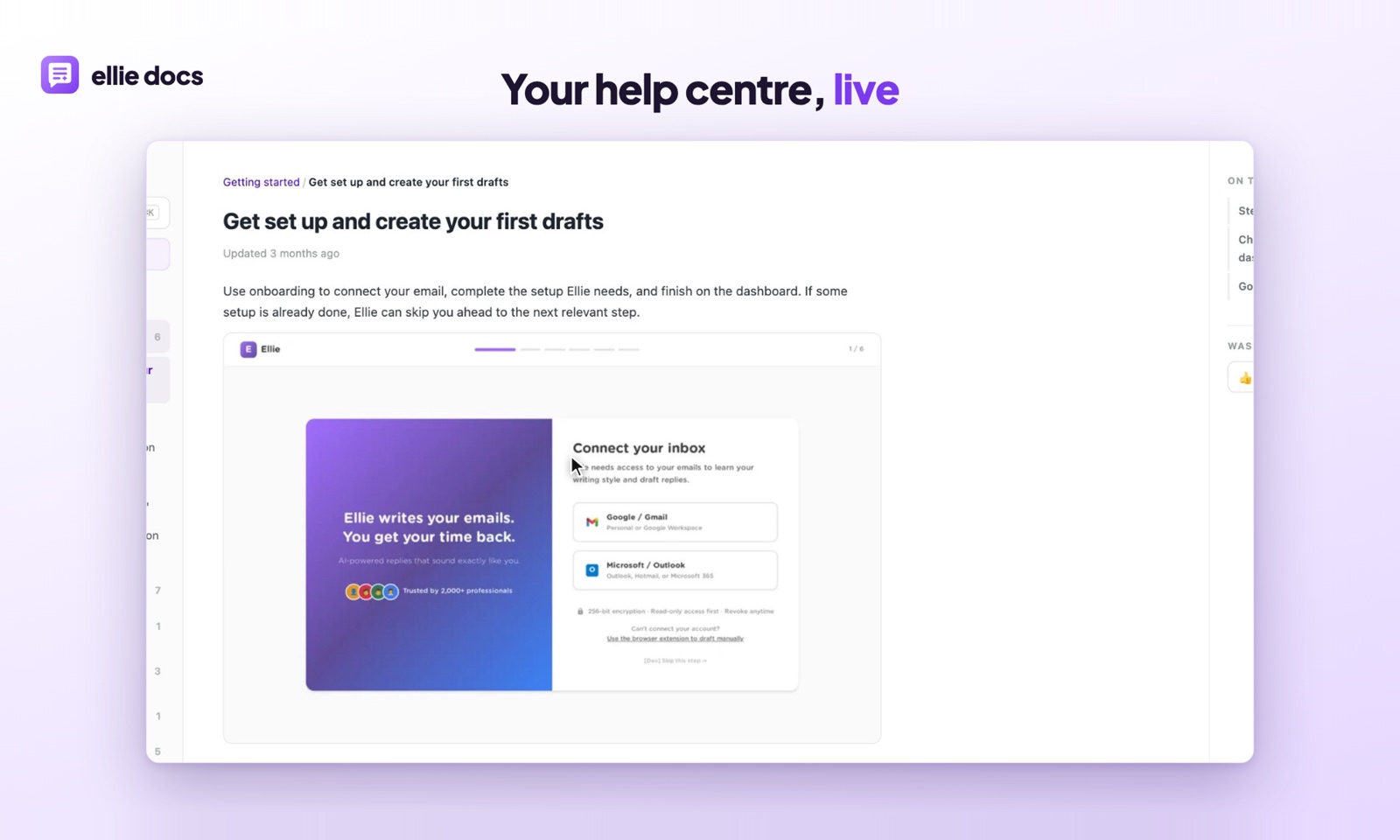
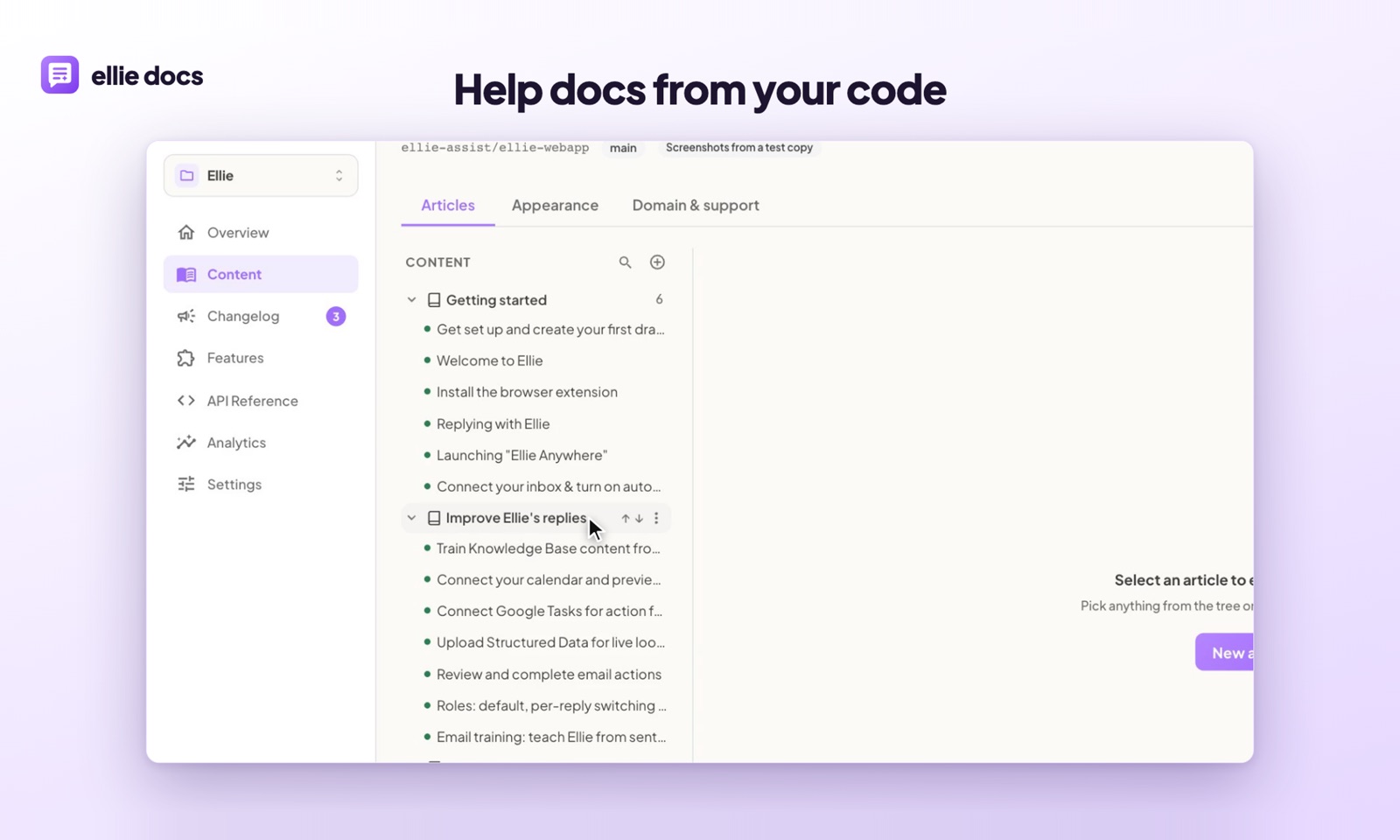
Disclosure: we build a tool for this. Ellie Docs connects to your GitHub repo, reads the code to work out your features and user-facing screens, and drafts a full help center. It runs your app in a sandbox, captures real screenshots of the logged-in product, and places them in the articles.
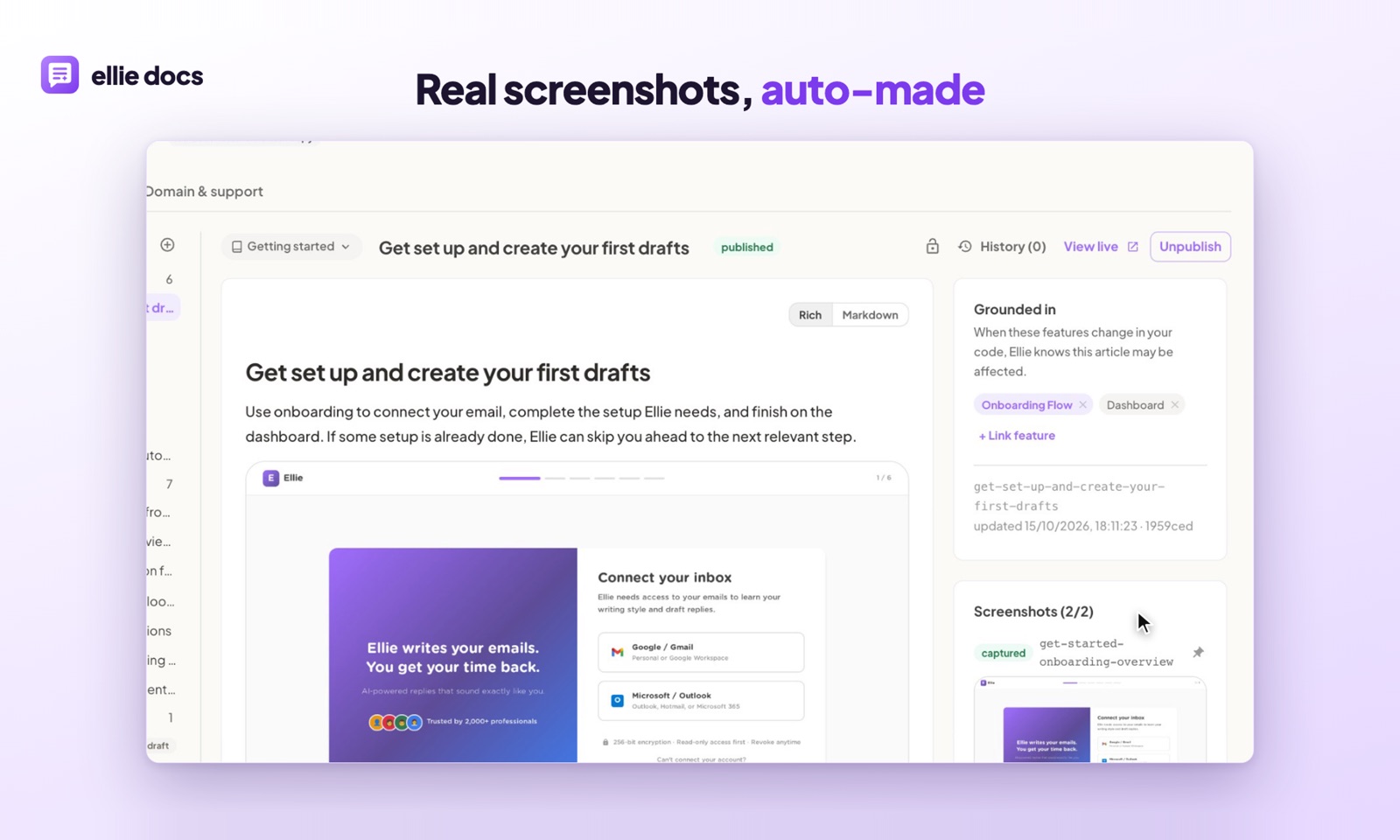
The part I care about most is maintenance. When a PR merges, Ellie checks which articles the change affects and proposes edits as a diff you accept or dismiss. Nothing publishes on its own. You still decide what customers read, you just stop learning from a support ticket that step 6 has been wrong for a month.
If you already have a help center, it imports your existing articles as drafts so you’re not starting from scratch. There’s a free plan, no card needed.
And if you’d rather do it all by hand, the template above works fine on its own.
A few questions people ask
What’s the difference between a help center and a knowledge base? Not much, in practice. “Knowledge base” usually means the collection of articles, and “help center” the customer-facing site with search and navigation on top. Most tools use the terms interchangeably.
Who should write help articles: support, product or engineering? Whoever is closest to the questions. Support knows what confuses people, engineering knows what changed. A setup that works well is support owning the help center, with engineers flagging affected articles in their PRs.
Want a first draft of your help center written from your own codebase? Try Ellie Docs free and see what it produces from your repo.