
Master Gmail Undo Send Email: Prevent Mistakes in 2026
Gmail lets you undo a sent email by delaying delivery for 5, 10, 20, or 30 seconds, and you can cancel it during that short window by clicking Undo. That window is customizable in Gmail settings, which is why increasing it to 30 seconds is one of the simplest ways to reduce email mistakes.
You probably searched this right after sending something you wish you could pull back. Maybe it went to the wrong person. Maybe the attachment never made it in. Maybe you spotted a typo the instant your finger left the mouse.
The good news is that Gmail does give you a brief escape hatch. The bad news is that many people misunderstand what it does. Gmail’s Undo Send feels like recall, but it isn’t. If you rely on it like a true retrieval tool, you’ll eventually get burned.
What works is understanding the feature exactly as Gmail designed it, setting it up properly, and building a workflow that prevents rushed messages in the first place.
Table of Contents
- That Sinking Feeling When You Hit Send Too Soon
- How Gmail Undo Send Really Works Its Magic
- How to Change Your Gmail Undo Send Time
- When Undo Send Is Not Enough
- From Reactive Fixes to Proactive Productivity
That Sinking Feeling When You Hit Send Too Soon
The worst email mistakes happen fast. You reply too quickly to a client. You hit send on an update meant for one thread, but it lands in another. You promise yourself you attached the file, then notice the paperclip never happened.
That split second after sending is familiar to anyone who lives in Gmail. Your eyes go straight to the bottom of the screen, your brain starts replaying the message, and your stress level jumps. If the note was routine, you move on. If it was sensitive, you don’t.
Gmail Undo Send exists for exactly this moment. It’s the tiny buffer between your mistake and the recipient seeing it. Used well, it can save you from an embarrassing typo, a wrong recipient, or a half-finished thought sent too early.
Practical rule: If you work in email all day, set up your safeguards before you need them. Panic is a terrible time to learn how Gmail works.
The mistakes that trigger the most regret are usually ordinary:
- Wrong thread: You answer the right question in the wrong conversation.
- Missing context: You send a message that made sense in your head, not on the page.
- Forgotten attachment: The email says “attached” and nothing is attached.
- Premature send: You hit send while still editing.
These aren’t rare edge cases. They’re normal inbox errors caused by speed.
If your Gmail workflow also involves mailing lists or team coordination, small mistakes can spread further than you intended. That’s one reason it helps to tighten up related habits too, especially when you’re managing recipients at scale. This guide on how to create a group in Gmail pairs well with Undo Send because it reduces another common source of sending errors.
The useful mindset is simple. Don’t treat Gmail Undo Send as magic. Treat it as a short grace period that can rescue fast, obvious mistakes before they turn into inbox damage.
How Gmail Undo Send Really Works Its Magic
The common idea of “unsend” is reaching into someone else’s inbox and taking the message back. That’s not what Gmail does.
It’s a delay, not a recall
The cleanest way to think about Gmail undo send email is this: Gmail pauses before fully sending. During that pause, Gmail shows an Undo option. If you click it in time, the message returns to Drafts instead of being delivered.
Google’s own explanation makes the boundary clear. Gmail allows a cancellation window of 5, 10, 20, or 30 seconds, and once that window closes, the message can’t be retrieved through this feature, as explained in Google’s guide on how to unsend email in Gmail.
A physical mail analogy helps. This is like handing a letter to a mail clerk who agrees to hold it for a few seconds before dropping it into the outgoing bag. If you change your mind immediately, you can grab it back. Once it’s gone, it’s gone.
Gmail Undo Send is best understood as a delivery delay. That mental model prevents most of the confusion around “why didn’t unsend work?”
Why this distinction matters at work
This difference sounds technical, but it changes how you use the feature in real life.
If you believe Gmail supports true recall, you’ll assume you have time to fix problems later. You don’t. Gmail’s version is useful for immediate correction only. It’s for catching the mistake you notice right away, not for rescuing a message you rethink after a meeting, after lunch, or after the recipient has already seen it.
That matters most for people handling sensitive communication: executives, sales teams, support leads, founders, and anyone who sends fast under pressure. If your process depends on post-send recovery, Gmail won’t give you that safety net.
Here’s the practical takeaway. Use Undo Send as a pause button, not a reversal tool. Once you understand that, the feature becomes much more reliable because your expectations match what the product does.
How to Change Your Gmail Undo Send Time
A lot of people leave Gmail’s default setup alone and assume it’s fine. It often isn’t.
Gmail’s send-cancellation period is often set to 5 seconds by default, and users can extend it to 30 seconds in settings, as described in Zapier’s walkthrough on how to unsend an email in Gmail. For most busy professionals, 30 seconds is the better choice because it gives you enough time to catch an error after that first glance at the sent message.
Gmail on the Web
On desktop, this setting is easy to miss because it lives in general preferences rather than in the compose window.
Follow these steps:
- Open Gmail in your browser.
- Click the gear icon near the top right.
- Open “See all settings.”
- In the General tab, find Undo Send.
- Choose your preferred Send cancellation period.
- Scroll down and save changes.
The available options are:
| Setting | What it means |
|---|---|
| 5 seconds | Minimal buffer, easy to miss |
| 10 seconds | Slightly safer, still short |
| 20 seconds | Better for fast-paced work |
| 30 seconds | Maximum built-in protection |
Generally, the right answer is simple: choose 30 seconds and leave it there.
My recommendation: If you’ve ever missed an attachment, replied too quickly, or sent a message while multitasking, use the longest setting. The extra wait is usually worth it.
One thing to know: when you click Undo, Gmail brings the message back as a draft. That’s useful because you can fix the wording, add the missing file, or change recipients before sending again.
Gmail on Mobile
The mobile experience feels different because the Undo prompt appears briefly right after sending, and it’s easy to ignore if you’re moving quickly between apps.
On mobile, the main habit to build is immediate visual confirmation after every send. Don’t tap send and instantly switch away. Pause long enough to notice whether Gmail offers the prompt and whether you need it.
A few practical habits help more than people expect:
- Send, then look down: On mobile, the prompt appears immediately after sending. Train yourself to watch for it.
- Don’t stack actions: If you send several emails in a row, you’re more likely to miss the cancellation prompt on one of them.
- Use drafts intentionally: For higher-stakes emails, save first, reread, then send.
If you rely heavily on your phone for email, it’s worth checking your settings on desktop too. That’s where Gmail gives you direct control over the cancellation period.
The setting is small, but the payoff is real
Changing this one option won’t make email stress disappear. It does give you a larger margin for the common mistakes that happen when you’re moving fast.
That makes Gmail Undo Send useful in the right way. Not as a rescue operation after the fact, but as a built-in buffer that buys you a few extra seconds of judgment.
When Undo Send Is Not Enough
Sometimes you catch the mistake too late. That’s when Gmail’s limits matter more than its convenience.
What happens after the window closes
Once the maximum 30-second delay expires, Gmail Undo Send stops being an option. The documented limitation is hard, not fuzzy. This feature works inside the configured window and not after it.
The strongest practical summary from the verified guidance is blunt: a major limitation of Undo Send is that it no longer works after the delay ends, and verified data notes that over 60% of failed attempts happen because people think it still works after the email is already in Sent. Within the allowed window, the feature works; after it, the success rate is 0%.
That’s the point where users often waste time clicking around Gmail, refreshing the tab, or searching for a hidden recall button that doesn’t exist.
If you notice the mistake minutes later, don’t keep hunting for an unsend option. Shift immediately to damage control.
That damage control might mean sending a correction, clarifying context, or following up quickly with the right attachment. It’s also a good reminder to improve your general habits around triage and review. A cleaner inbox reduces rushed sends, which is one reason many people benefit from a more deliberate system for organising your inbox.
Where people get tripped up
The most common misunderstanding is the Sent folder myth. People see the email in Sent, assume Gmail still has some backend ability to pull it back, and only then try to undo it.
Another issue appears when people use external email clients. Gmail’s Undo Send is tied to Gmail’s own interface. If you send through another mail app, you shouldn’t assume the same prompt or behavior will appear there.
There’s also confusion around “recall” in workplace systems. Some enterprise environments offer recall-style features for internal mail, but those depend on the sender’s and recipient’s systems, permissions, and organization setup. Verified guidance for a Google Workspace Marketplace add-on notes that true recall-style behavior is limited to messages sent within the same organization or domain and isn’t available for personal Gmail accounts, as described on the Remail Undo Sent Email listing in Google Workspace Marketplace.
So if your real question is, “Can Gmail pull back an email from someone outside my company after the timer ends?” the practical answer is no.
From Reactive Fixes to Proactive Productivity
Undo Send is useful, but it’s still a reactive tool. It helps after you’ve already made the mistake.
A better standard than catching mistakes late
The better goal is sending stronger emails the first time. That means fewer rushed replies, fewer missing details, and less dependence on a tiny cancellation window.
For some people, that’s mostly habit:
- Draft before reacting: Especially when the email is emotional or high stakes.
- Pause before sending: Even a short reread catches a lot.
- Reduce inbox chaos: A calmer queue leads to better judgment.
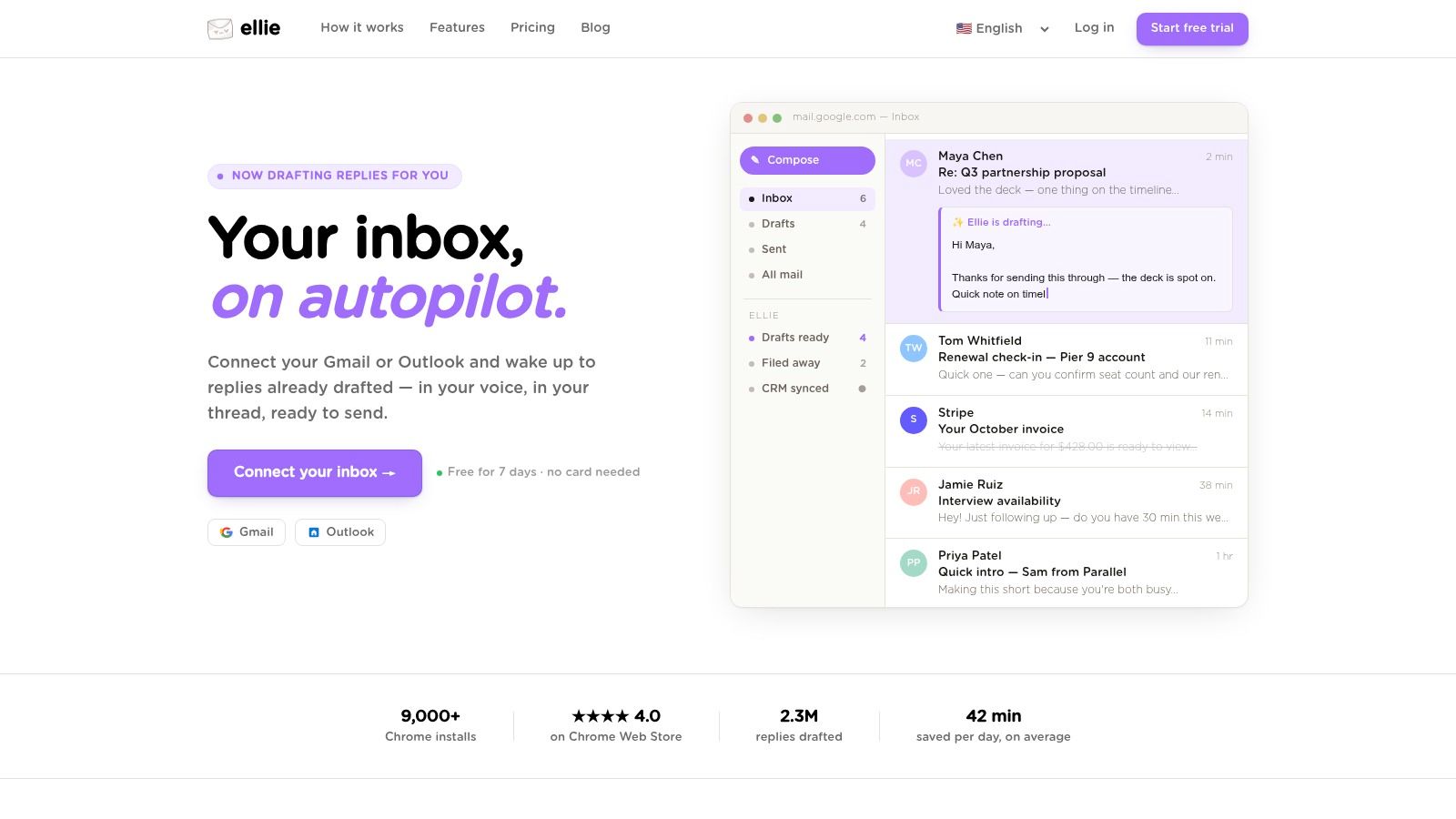
For others, tooling helps. AI drafting assistants inside Gmail and Outlook can reduce the mental load by preparing replies from thread context and saved writing patterns. One example is Ellie’s Inbox Zero method guide, which connects the productivity side of email management with the quality of the messages you send. Ellie itself is an AI email assistant that drafts replies inside Gmail and Outlook and can place them in Drafts, which fits naturally with a workflow built around reviewing before sending.
The important shift is this: Gmail undo send email is a safety net. It is not a quality system. If you want fewer regrets, fewer corrections, and less inbox stress, prevention beats recovery.
If your team spends too much time drafting, correcting, and re-reading email, Ellie is worth a look. It works inside Gmail and Outlook, drafts replies in your tone, and saves them to Drafts so you can review before sending, which is often the simplest way to avoid needing Undo Send at all.