
How to Turn Support Tickets Into Help Articles That Work
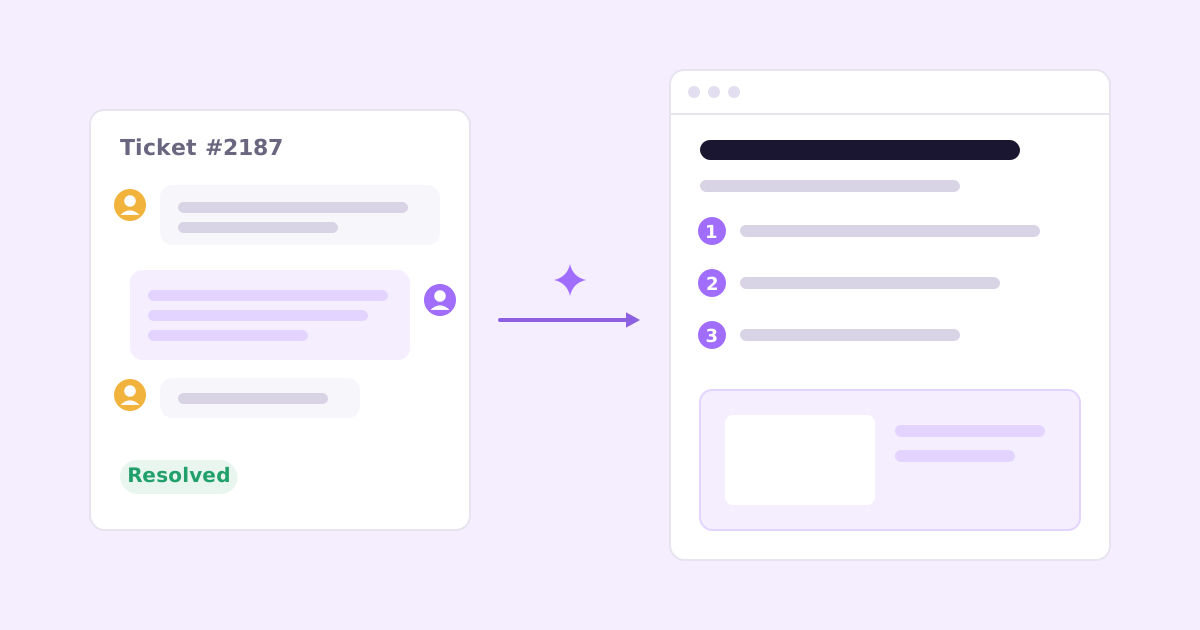
You just spent ten minutes writing a careful reply. You explained where the setting lives, why it behaves that way, and the workaround for the edge case. The customer said thanks. You archived the thread.
And that answer is now gone. Next week someone will ask the same thing and you’ll write it again.
To turn support tickets into help articles, take a resolved ticket whose question is likely to come up again, use the customer’s own words as the article title, turn your reply into numbered steps, remove anything specific to that customer, add a current screenshot, and publish it where people search. Do it right after you resolve the ticket, while the details are fresh. Once it’s a habit, your support knowledge base grows from real questions instead of from guesses about what people might want to know.
Here’s the method in detail.
Why tickets make better help articles than a blank page
When you sit down to “write the docs”, you write about features. Here’s the Reports page. Here’s what each button does. It’s organized the way you think about the product.
Customers don’t search like that. They search with a problem: “can’t find old invoices”, “export stops halfway”, “teammate didn’t get the invite”. Support tickets are a direct record of those problems, in the words people actually use.
Building a knowledge base from support tickets gives you three things a blank page doesn’t:
- The right topics. You’re writing about what people actually get stuck on, not what you assume they’ll get stuck on.
- The right vocabulary. The ticket tells you what people call the thing. Use that word in the title.
- A tested answer. You already gave this answer to a real person and it worked.
It’s also faster. The hard thinking (working out the cause and the fix) is already done. You’re editing, not composing.
Which support tickets should become help articles?
Not every ticket deserves an article. A good filter:
Write an article when:
- The question has come up before, or obviously will again.
- The answer is the same for everyone (or for everyone on a given plan).
- The fix is something the customer can do themselves.
- You had to explain something the product doesn’t make obvious.
Don’t write an article when:
- It was a one-off bug you’ve now fixed. (Maybe a changelog entry instead. See how to write a changelog customers read.)
- The answer depends on private account details.
- The fix requires you to do something on your side.
- The real fix is changing the product. If ten people are confused by the same button, the button is the problem. Write the article as a stopgap and file the product fix.
When in doubt, write it. A short article that answers one question well is never wasted.
The ticket to article method, step by step
1. Start from the customer’s question, not your answer
Look at how the customer phrased the problem. That’s your title, lightly cleaned up.
Ticket: “Why can’t I see my old invoices anymore??” Article title: “Can’t find old invoices”
Or as a how-to: “How to find invoices from previous years”. Either works. What doesn’t work is “Billing history filtering”, which is how you’d describe it internally and how nobody searches.
2. Map the thread to an article outline
Most support threads follow a pattern: customer describes a symptom, you ask a clarifying question, you explain the fix. That maps neatly onto an article.
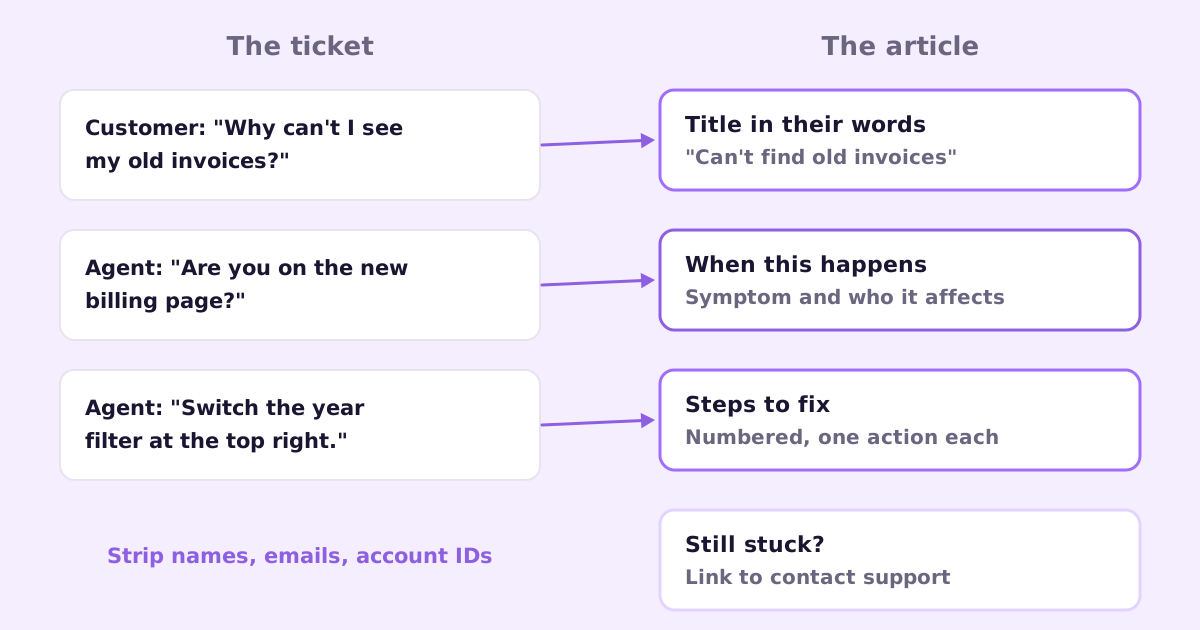
Here’s an outline that fits most tickets:
# Can't find old invoices

If you've opened Billing and only see invoices from this year,
the page is filtered to the current year by default.

## When this happens
- You're on the Billing page and older invoices are missing
- Applies to all plans, since the billing page update

## How to see older invoices
1. Go to Settings > Billing.
2. Click the year filter at the top right of the invoice list.
3. Choose the year you need, or "All time".
4. Click Download next to any invoice to get a PDF.

[screenshot: year filter open on the Billing page]

## Still stuck?
If an invoice is missing after choosing "All time",
contact us and include the month and amount.
Notice what came from where. The title is the customer’s question. “When this happens” is the clarifying question you asked (“are you on the new billing page?”), turned into a symptom description. The steps are your reply, broken into one action per line. The “still stuck” section covers the cases where the article won’t help.
If you want more detail on the structure of a good article, there’s a full guide on how to write help center articles people actually use.
3. Strip everything private
Support threads are full of personal details. Before anything goes public, remove:
- Names, email addresses, company names
- Account IDs, order numbers, invoice amounts
- Anything from screenshots the customer sent (crop or retake them)
- Internal notes, mentions of colleagues, guesses that turned out wrong
- Promises specific to that customer (“I’ve extended your trial”)
This is the step people skip when they rush. A quick reread with “would I be comfortable if this customer saw their details here?” in mind catches most of it.
4. Generalize the answer
Your reply was written for one person. The article is for everyone with that problem. Some edits that usually help:
- Swap one-off details for general ones. “Your Q3 report” becomes “a large report”.
- Cover the obvious variations. If the fix differs on mobile, or on a different plan, say so.
- Remove the back-and-forth. The article should read as one clean answer, not a conversation.
- Lead with the fix. Explanation of why comes after, and only if it helps.
5. Add a current screenshot
A screenshot of the exact screen and the exact button is worth a paragraph of description. Take a fresh one from your own account, not the customer’s. Make sure it matches what people see today. An out-of-date screenshot makes readers doubt everything else on the page.
Keeping screenshots current is its own chore, especially if you ship often. I wrote about automating product screenshots for documentation if that’s a pain point.
6. Publish where people will find it
Put the article in your help center under a sensible section. Then link it from:
- The ticket you just resolved (so the customer has it for next time)
- Any saved reply that answers the same question
- The place in your product where the confusion happens, if you can
And next time the question comes in, reply with a short personal note plus the link. If the customer still has questions after reading it, the article needs work.
How to make this a habit (the part that matters)
The method is easy. Doing it consistently is hard. Support days are busy, and “I’ll write it up later” means never.
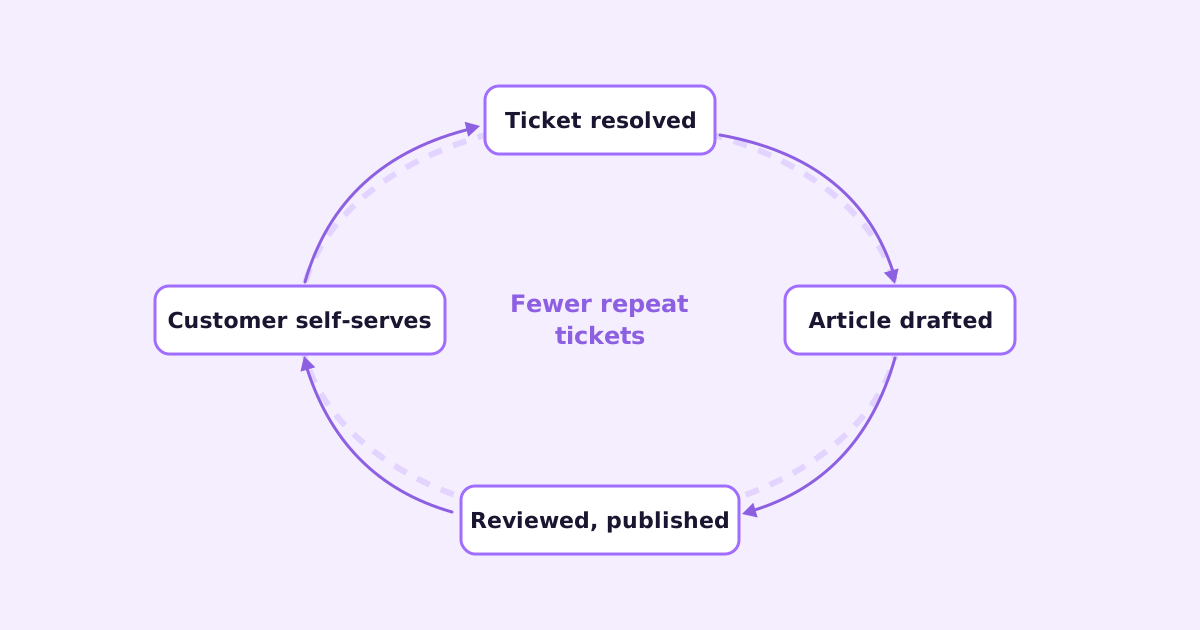
Some things that help:
Do it at resolution time. Right after you close the ticket, ask: would someone else ask this? If yes, draft the article now. Five minutes now beats thirty minutes trying to remember the details later.
Use a “needs article” tag. If you genuinely can’t stop, tag the ticket. Once a week, clear the tag. Don’t let it pile past ten.
Lower the bar for publishing. A short, accurate article is better than a perfect one that’s still a draft. You can improve it next time the question comes in.
Make it everyone’s job. Whoever answers the ticket drafts the article. Someone else gives it a quick read before publishing.
Track repeat questions. When the same question comes in after you’ve published an article, either people can’t find it or it doesn’t answer the question. Fix the title, the wording or the placement.
Bigger support teams formalize this as Knowledge-Centered Service (KCS), a methodology where capturing knowledge is part of solving every case. The full framework is more than a small team needs, but the core idea (write it down while you solve it) is exactly right.
Can AI turn tickets into help articles for you?
Partly, yes. Drafting is the part AI is good at. Give a model a resolved ticket thread and a template like the one above, and it’ll produce a reasonable first draft: title from the customer’s question, symptoms, steps, still-stuck section.
What it still needs from you:
- A check that the answer is right in general, not just for that customer.
- Removal of private details. AI can help here, but don’t rely on it blindly.
- A real screenshot. The model can’t take one of your current UI unless something actually runs your app.
- Judgment on whether this should be an article at all, or a product fix.
That’s the workflow we’re building into Ellie Desk: when a ticket is resolved, one click drafts a help article from the thread, and you review and edit it before it goes anywhere. Desk is a shared inbox for email, chat and a web widget, and it’s in early access now. If you also use Ellie Docs, it fills in the rest: Docs drafts your help center from your codebase, captures real screenshots of your app, and keeps articles current when you ship, while Desk catches the questions the docs didn’t answer yet. Between them, tickets feed the docs and the docs reduce tickets. There’s more on that in how to reduce support tickets without hiring.
Plenty of helpdesks (Zendesk, Help Scout, Intercom and others) also have ways to create an article from a ticket, with varying amounts of AI involved. The method above works with any of them, or with a Google Doc and a copy of your helpdesk export.
Common questions
How long should an article written from a ticket be? As short as it can be while fully answering the question. Many good ones are under 200 words plus a screenshot. If it’s getting long, it’s probably two articles.
Should I publish articles about bugs? For known bugs with a workaround that’ll be around for a while, yes, and mark them clearly as known issues. Remove or update them when the fix ships. For bugs you fixed the same day, no.
What if customers still email instead of reading the article? Some always will, and that’s fine. Reply with a short personal note and the link. Over time, more people find the articles first, especially if they’re linked from inside the product and from your contact form.
If you want resolved tickets to turn into draft help articles in one click, join the Ellie Desk early-access list.